# Resource Monitoring Chart

## Resource Monitoring Chart area

This is the area where the users can check the resource indicators used by ProSync during synchronization, such as Memory and CPU usage, Transaction and DML count, and TSN Gap accumulated as synchronization progresses, per Stream belonging to the selected Diagram.

<figure><img src="https://content.gitbook.com/content/08GFwBtHMB3iRBV0LNAw/blobs/G8sEi1tQRaQ0Ey3NbEoU/image.png" alt=""><figcaption></figcaption></figure>

The Replication Diagram page only shows information from `{current time}-6 minutes` to `{current time}-2 minutes` for the selected Stream, and the users can go to the detailed view area by clicking the EnLarge button in the upper right corner of each chart area.

[**Resource Monitoring**](#resource-monitoring) \
The users can view the memory and CPU usage used by ProSync. This chart only shows information from the Apply process.

[**Count**](#count) \
The users can see the number of transactions and DMLs that occurred during a ProSync synchronization.

[**TSN Gap** ](#tsn-gap)\
The users can see the TSN Gap as ProSync progresses.

###

***

## Detailed view area

### Resource Monitoring&#x20;

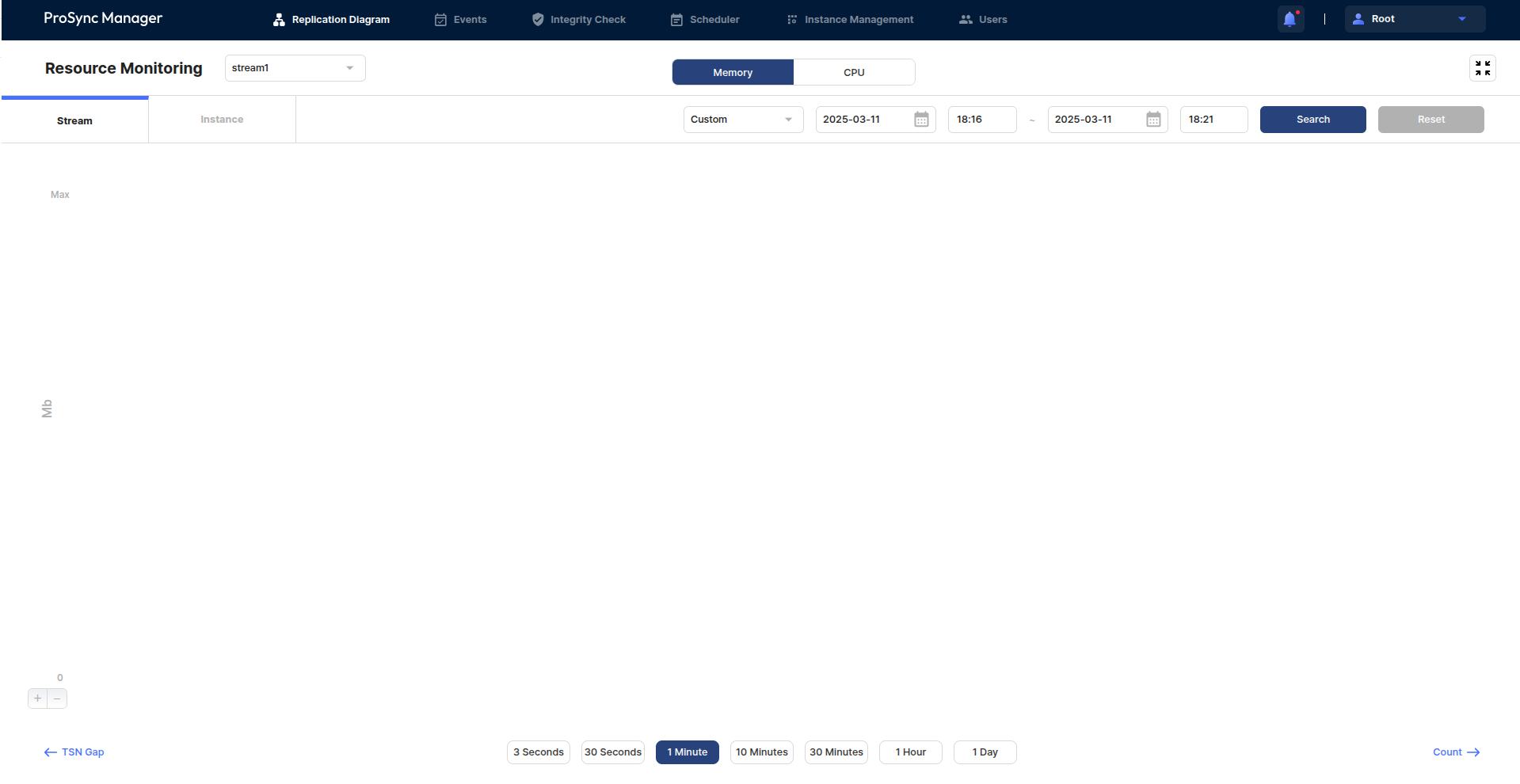
<figure><img src="https://content.gitbook.com/content/08GFwBtHMB3iRBV0LNAw/blobs/Yhag0IkjpsG7hfpHKORq/image.png" alt=""><figcaption></figcaption></figure>

The Resource Monitoring chart is organized into the following main sections.

#### Memory / CPU button

Select the type of resource the users want to view.

#### Stream / Instance tab

Select the unit whose resources the users want to view.\
When selecting the Instance tab, the users need to select the Instance and Process type the users want to view.

#### Search&#x20;

Search by selecting the time period the users want to view.

#### Chart area

The area where the Line Chart is drawn.

#### Select interval

Select the interval Units for the x-Axis of a Line Chart.

#### **Zoom in and out buttons**

Zoom in and out of the horizontal length of a Line Chart

### Count

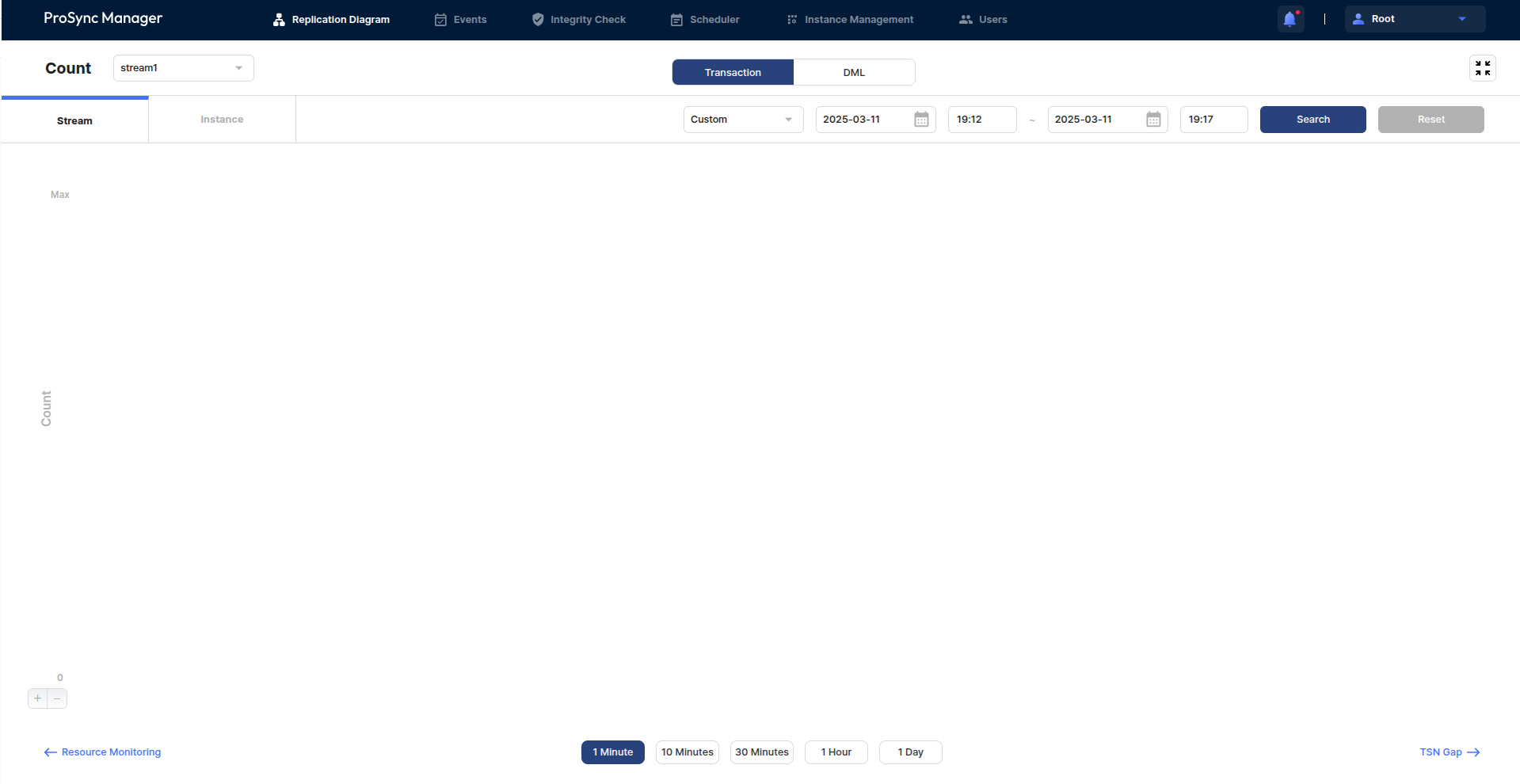
<figure><img src="https://content.gitbook.com/content/08GFwBtHMB3iRBV0LNAw/blobs/gbGg6maF8V4gj9vFXhS3/image.png" alt=""><figcaption></figcaption></figure>

The Count chart is organized into the following main sections.

#### Transaction / DML button

Select the type of count the users want to view.

#### Stream / Instance tab

Select the unit for which the users want to view resources.\
When selecting the Instance tab, the users need to select the Instance the users want to view.

#### Search&#x20;

Search by selecting the time period the users want to view.

#### Chart area

The area where the Line Chart is drawn.

#### Select interval&#x20;

Select the interval Units for the x-Axis of a Line Chart.

#### **Zoom in and out buttons**

Zoom in and out of the horizontal length of a Line Chart

### TSN Gap

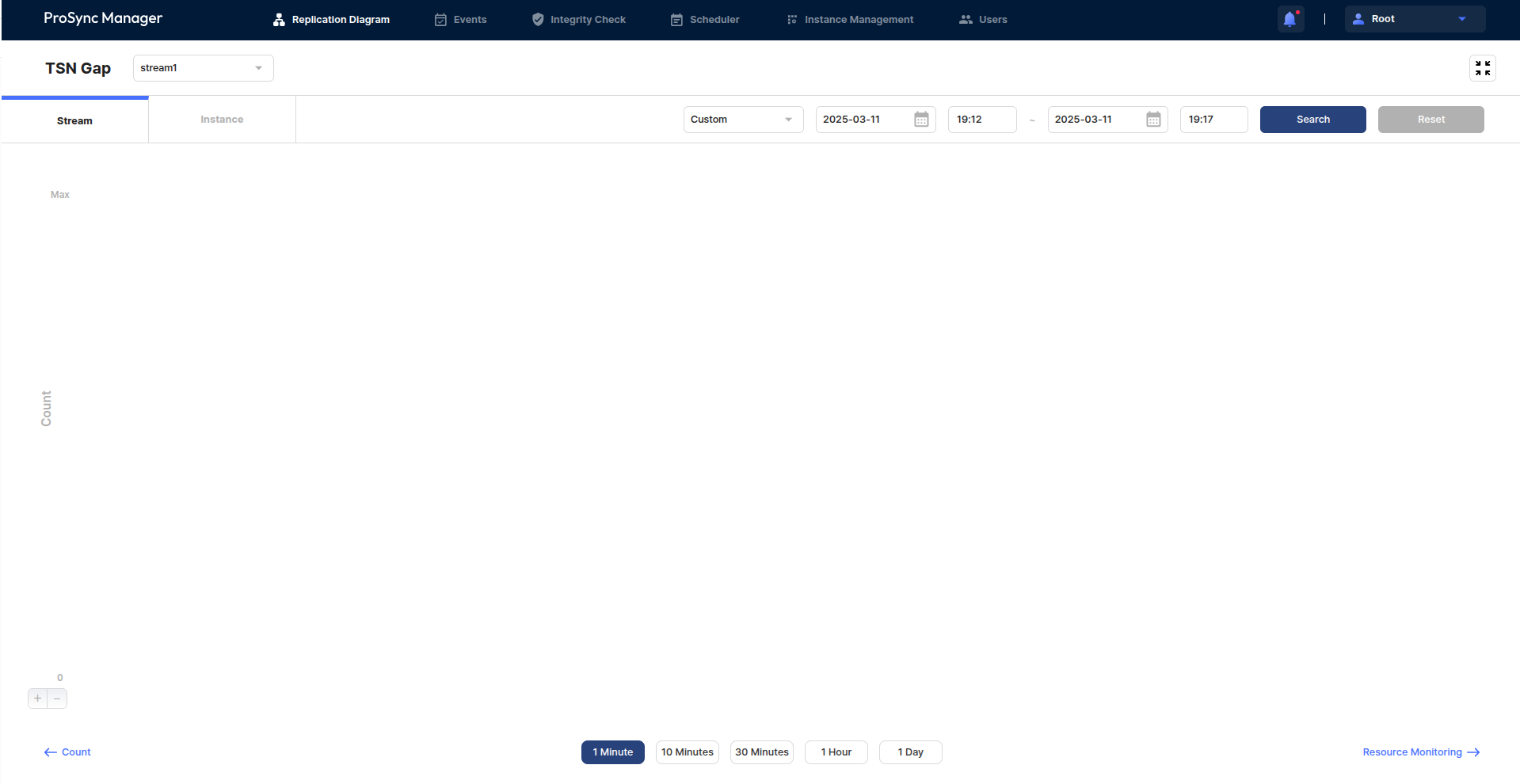
<figure><img src="https://content.gitbook.com/content/08GFwBtHMB3iRBV0LNAw/blobs/Z4088Fal2Po5wqtCWBAE/image.png" alt=""><figcaption></figcaption></figure>

The TSN Gap chart is organized into the following main sections

#### Stream / Instance tab

Select the unit for which the users want to view resources.\
When selecting the Instance tab, the users need to select the Instance the users want to view.

#### Search&#x20;

Search by selecting the time period the users want to view.

#### Chart area

The area where the Line Chart is drawn.

#### Select interval&#x20;

Select the interval Units for the x-Axis of a Line Chart.

#### **Zoom in and out buttons**

Zoom in and out of the horizontal length of a Line Chart

###