> For the complete documentation index, see [llms.txt](https://docs.tibero.com/prosyncmanager.en/llms.txt). Markdown versions of documentation pages are available by appending `.md` to page URLs; this page is available as [Markdown](https://docs.tibero.com/prosyncmanager.en/prosync-manager-manual/integrity-check.md).

# Integrity Check

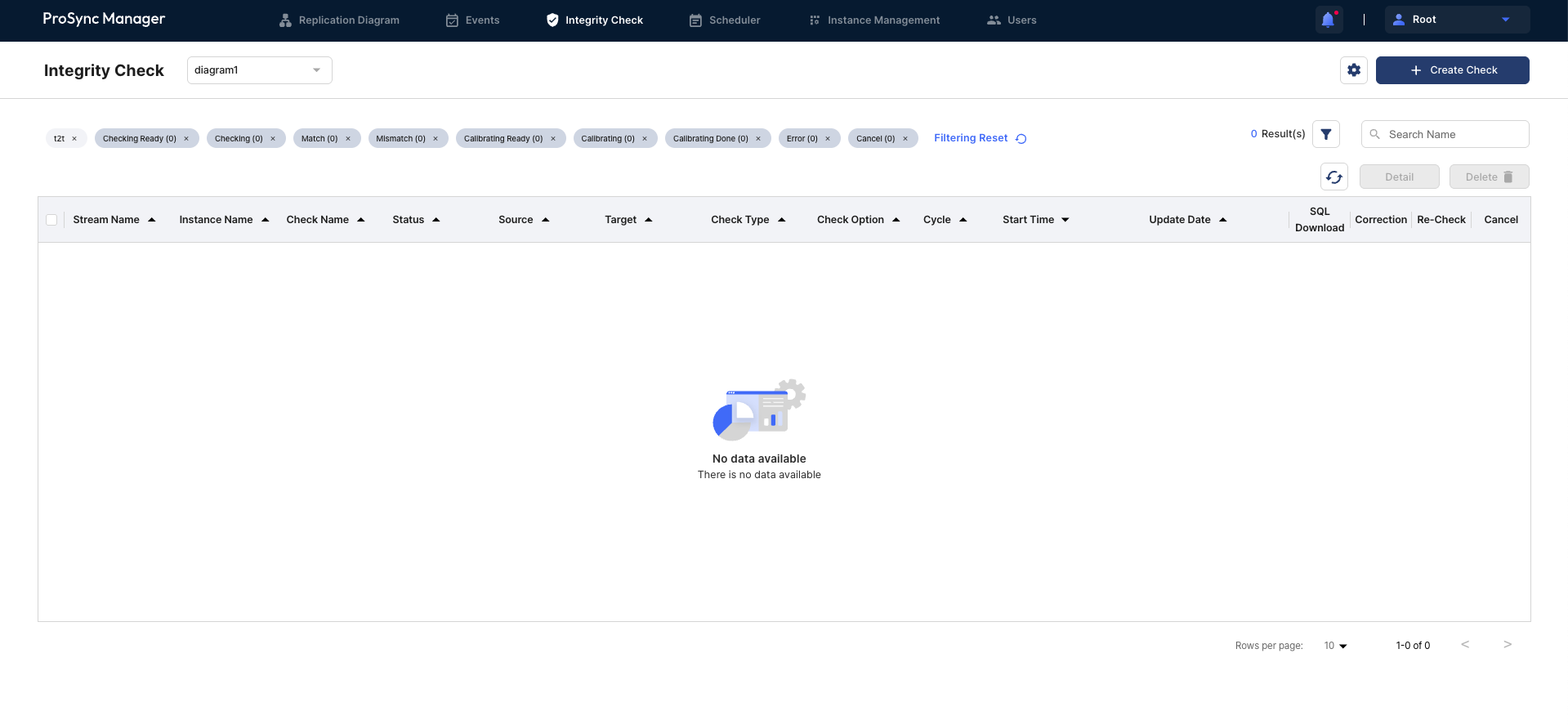
The users can perform consistency checks on synchronized data.

<figure><img src="/files/r6JV3DaXPCa5G7D7bhUu" alt=""><figcaption></figcaption></figure>

## Integrity Check&#x20;

Integrity Check refers to ProSync's consistency check.

It checks whether data consistency matches for specific tables in the source and target DBs being synchronized, and if it does not, the users can check or correct the result of the consistency check.

###

***

## Integrity Check area

### Setting Create Check and Thread&#x20;

* The users can create a job to check for consistency, and set the thread count to be used by the job.

### Filtering area

* The users can search among the created jobs by filtering by specific instance, check status, and check name.
* The left side shows the items used for filtering, which can be removed from filtering via the x button to the right of each filter tag or reset with the Filtering Reset button. These items can be specified via the filter button on the right.
* The numbers to the right of the filtering item indicate the number of jobs of that status.

### Refresh and delete details

* Refresh: Updates the status as the job progresses.
* Delete details: Checks and deletes the details of a registered job.

### Integrity Check Table

* This is the table where the users can see the list with all filtering applied.
* Select the desired entry in the table for the Job's behavior, or for deleting and editing.

<table><thead><tr><th width="227">Item</th><th>Description</th></tr></thead><tbody><tr><td>Stream Name</td><td>The name of the stream to perform the consistency check.</td></tr><tr><td>Instance Name</td><td>The name of the instance to perform the consistency check.</td></tr><tr><td>Check Name</td><td>The name of the consistency check.</td></tr><tr><td>Status</td><td>The status of the consistency check.</td></tr><tr><td>Source</td><td>The table information of the source DB to perform the consistency check.</td></tr><tr><td>Target</td><td>The table information of the target DB to perform the consistency check.</td></tr><tr><td>Check Type</td><td>Type of the type to perform the consistency check.</td></tr><tr><td>Check Option</td><td>Option to perform the consistency check.</td></tr><tr><td>Cycle</td><td><p>Indicates whether to schedule.</p><ul><li>Monthly: Runs the job at the specified time every month.</li><li>Weekly: Runs the job at the specified time every week.</li><li>Daily: Runs the job at the specified time every day.</li><li>None: This is a one-time job that is not scheduled.</li></ul></td></tr><tr><td>Start Time</td><td>The start time of the consistency check.</td></tr><tr><td>Update Time</td><td>The last time the Status of the consistency check was changed.</td></tr><tr><td>SQL Download</td><td>This button downloads the correction SQL file if there is a consistency mismatch.The generated SQL file has the same name as verify_[ID]_[Check Name].sql, and the contents of the sql file are written based on the Source Table and reflected in the Target Table when reflected.</td></tr><tr><td>Correction</td><td>If there is a mismatch, this button reflects the correction sql file to the DB.</td></tr><tr><td>Re-Check</td><td>This button reexecutes the consistency check.</td></tr><tr><td>Cancel</td><td>This button cancels the consistency check or correction.</td></tr></tbody></table>

{% hint style="info" %}
**Note**

These actions can be executed with a right-click after multiple selections of the table.

The items that appear depend on the status of the selected Job, and the job is executed according to its status.
{% endhint %}

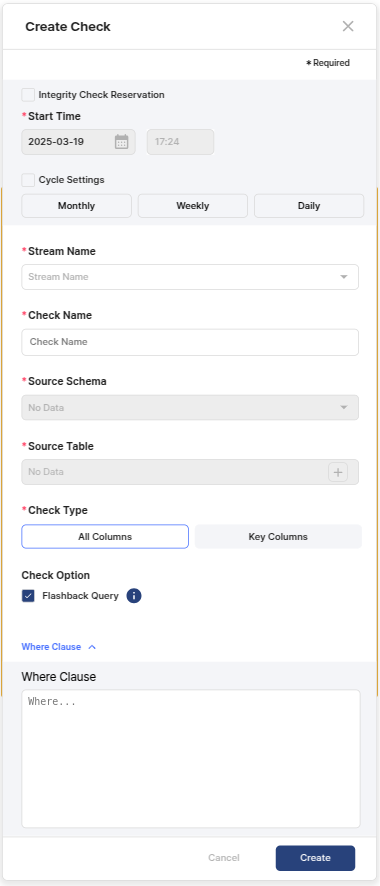
## Create Check

<figure><img src="/files/AAGJsry9msICfMEI2mHs" alt=""><figcaption></figcaption></figure>

<table><thead><tr><th>Item</th><th width="436">Description</th><th>Required Item</th></tr></thead><tbody><tr><td>Schedule Setting</td><td><p>The users can set the schedule of the integrity check.</p><ul><li>Integrity Check Reservation: Specify whether to use scheduling.</li><li>Start Time: Specify the time when the integrity check is performed.</li><li>Cycle Settings: Specify whether to perform the integrity check repeatedly. The users can set the cycle in Monthly / Weekly / Daily units.</li></ul></td><td>N</td></tr><tr><td>Stream Name</td><td>Select a stream to perform the consistency check.</td><td>Y</td></tr><tr><td>Check Name</td><td>Enter a name for the consistency check except Korean characters.</td><td>Y</td></tr><tr><td>Source Schema</td><td>Select the schema of the source DB to perform the consistency check.If the users select All, a job is created for the entire schema of the synchronization table.</td><td>Y</td></tr><tr><td>Source Table</td><td>Select the table of the source DB to perform the consistency check.If the users select All, a job is created for the entire  table of the synchronization table.</td><td>Y</td></tr><tr><td>Check Type</td><td><p>Select the type of consistency check to be performed.</p><ul><li>All column: Compares all columns to check consistency.</li><li>Key column: Compares only the primary key to check consistency.</li></ul></td><td>Y</td></tr><tr><td>Check Option</td><td>Check the consistency check with Flashback Query as an option. If the users disable this option, the check is performed at the current time, and if synchronization is in progress, the consistency is not guaranteed.If the users select this option and the check cannot be performed because there is no snapshot at that time, the check is automatically disabled and the check is performed at the current time.</td><td>N</td></tr><tr><td>Where Clause</td><td>Enter a where clause to be used for the consistency check. The users do not need to enter a 'WHERE' condition, only the conditional statement the users want to check, and the users can specify the range to check for a specific column, etc.</td><td>N</td></tr></tbody></table>

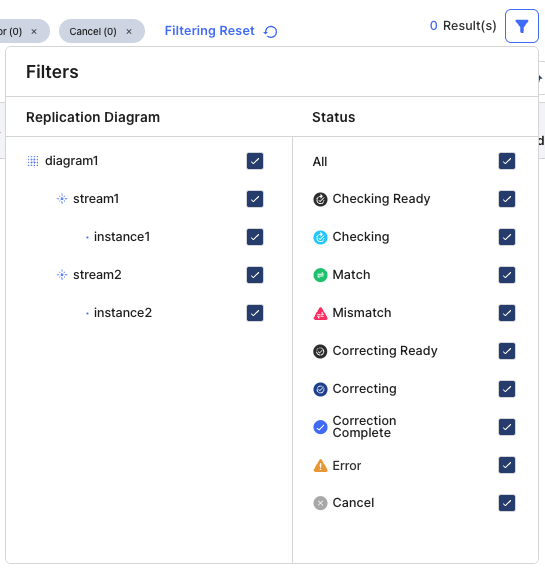
## Integrity Check Filtering

&#x20;When searching the Integrity Check table, the users can utilize these filters to perform more sophisticated searches.

<figure><img src="/files/2MQ2rfuhlgYsvrR4ByyZ" alt=""><figcaption></figcaption></figure>

### Replication Diagram area

* The users can see a list of Streams - Instances that belong to the Diagram specified in the Diagram Filter in the header of the page.
* Select the Instances the users want to select/clear by the filtering criteria. Select Stream if the users want to select/clear all instances in a Stream, or Diagram if the users want to select/clear all instances in the current Diagram.

### Integrity Check Status area

All of the status types available on the Integrity Check page.

<table><thead><tr><th width="180">Item</th><th>Description</th></tr></thead><tbody><tr><td>Checking Ready</td><td>The job is waiting to be checked.</td></tr><tr><td>Checking</td><td>The job is in the checking state.</td></tr><tr><td>Match</td><td>The job has finished checking and the match is a match.</td></tr><tr><td>Mismatch</td><td>The job has finished checking and the match is a mismatch.</td></tr><tr><td>Correcting Ready</td><td>The job is waiting to be corrected.</td></tr><tr><td>Correcting</td><td>The job is in the correcting state.</td></tr><tr><td>Correction Complete</td><td>The job is in the correction state. Correction Complete means that the correction of the job is complete.</td></tr><tr><td>Error</td><td><p>An error occurred during the inspection/correction of the job.</p><p>Click the Info icon of the status to check the detailed message.</p></td></tr><tr><td>Cancel</td><td>The job was canceled during the inspection/correction.</td></tr></tbody></table>

## Integrity Result Report

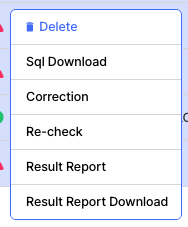
This feature allows the users to check the result of the Integrity Check execution. The users can check and download the Result Report item when the users right-click the mouse by selecting multiple jobs to check.

<figure><img src="/files/it4BjCKmJUdiu1FLi0rZ" alt=""><figcaption></figcaption></figure>

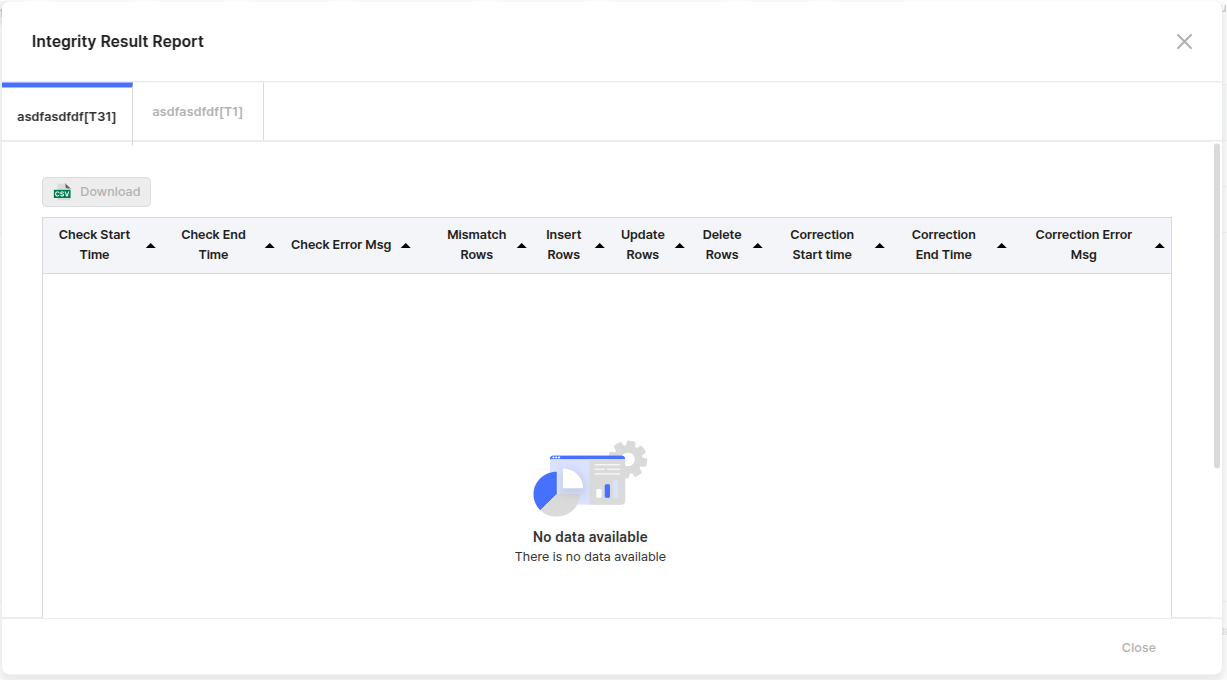
### Integrity Result Report&#x20;

<figure><img src="/files/SCaMepRb70hisci7sRYX" alt=""><figcaption></figcaption></figure>

#### Integrity Job Tab

* The name of each job for which the users want to view the Result Report.

#### Result CSV download

* The users can download each Result Report as a csv file and manage it.
* It has a name like `Integrity_Report_[Job Name].csv.`

#### Result Report table

<table><thead><tr><th width="153">Item</th><th>Description</th></tr></thead><tbody><tr><td>Check Start Time</td><td>The time when the check of the job started.</td></tr><tr><td>Check End Time</td><td>The time when the check of the job ended.</td></tr><tr><td>Check Error Msg</td><td>The message checked when an error occurred during the check of the job.</td></tr><tr><td>Mismatch Rows</td><td>The total number of mismatched rows when the job was in Mismatch status.</td></tr><tr><td>Insert Rows</td><td>The number of rows corresponding to Insert during the correction operation.</td></tr><tr><td>Update Rows</td><td>The number of rows corresponding to Update during the correction operation.</td></tr><tr><td>Delete Rows</td><td>The number of rows corresponding to Delete in a correction operation.</td></tr><tr><td>Correction Start Time</td><td>The time when the correction of the job started.</td></tr><tr><td>Correction End Time</td><td>The time when the correction of the job ended.</td></tr><tr><td>Correction Error Msg</td><td>The message checked when an error occurred during the correction of the job.</td></tr></tbody></table>

### Integrity Result Report Download

The users can download and manage the Result Report, which has a name like `Integrity_Report_[Job Name].csv.`

{% hint style="info" %}
**Note**

It is recommended using Microsoft's Excel program to open it, and described it based on that.
{% endhint %}

#### **How to open a CSV file**&#x20;

1. Start the Excel Program
2. File > Import at the top of the menu
3. Select a CSV file and open the file
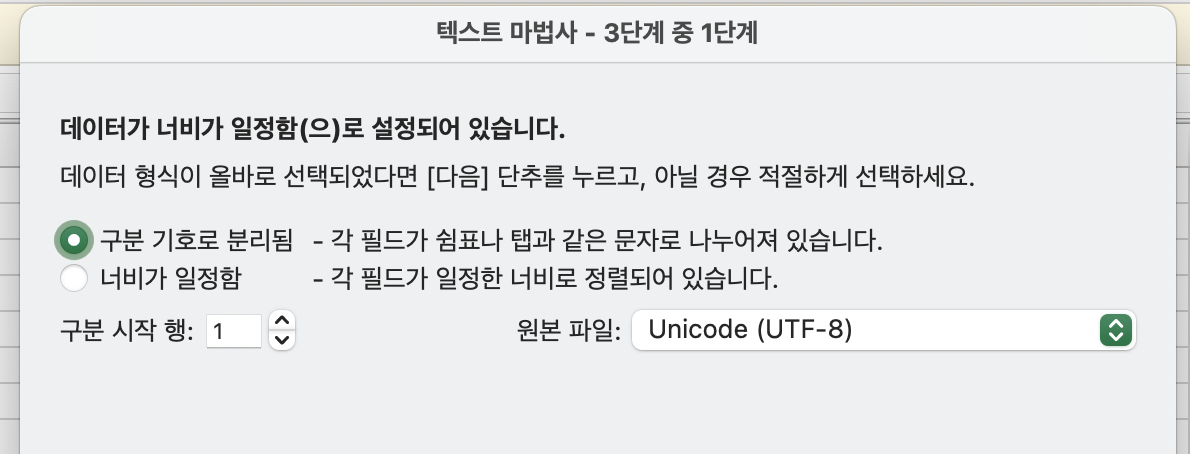
4. Select Delimited and UTF-8

<figure><img src="/files/VgbpJ5MnGLWdeQQSzElU" alt=""><figcaption></figcaption></figure>

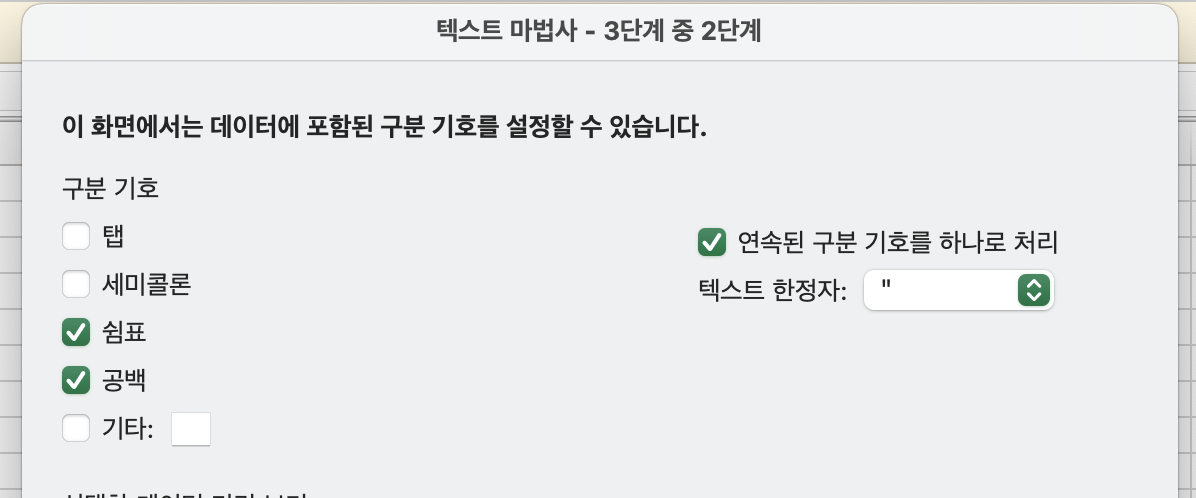
5. Delimiters - Select Treat commas, spaces, and consecutive delimiters as one \\\
   Text qualifiers - select '"' (double quotes)

<figure><img src="/files/7eJCkQ17X0oBoHpIiNZD" alt=""><figcaption></figcaption></figure>

6. Finish

The above steps should be followed to open the file so that the users can check the data without any corruption or delimiters.

<figure><img src="/files/aQUFtokkWrGZXrt9ulWr" alt=""><figcaption></figcaption></figure>

###


---

# Agent Instructions
This documentation is published with GitBook. GitBook is the documentation platform designed so that both humans and AI agents can read, navigate, and reason over technical content effectively. Learn more at gitbook.com.

## Querying This Documentation
If you need additional information that is not directly available in this page, you can query the documentation dynamically by asking a question.

Perform an HTTP GET request on the current page URL with the `ask` query parameter, and the optional `goal` query parameter:

```
GET https://docs.tibero.com/prosyncmanager.en/prosync-manager-manual/integrity-check.md?ask=<question>&goal=<endgoal>
```

`ask` is the immediate question: it should be specific, self-contained, and written in natural language.
`goal` is optional and describes the broader end goal you are ultimately trying to accomplish on behalf of the user. GitBook uses it to tailor the answer towards what is most useful for that goal.

The response will contain a direct answer to the question and relevant excerpts and sources from the documentation.

Use this mechanism when the answer is not explicitly present in the current page, you need clarification or additional context, or you want to retrieve related documentation sections.