> For the complete documentation index, see [llms.txt](https://docs.tibero.com/prosyncmanager.en/llms.txt). Markdown versions of documentation pages are available by appending `.md` to page URLs; this page is available as [Markdown](https://docs.tibero.com/prosyncmanager.en/prosync-manager-manual/scheduler.md).

# Scheduler

<figure><img src="/files/S5yYVTaOkeAK6NKROizx" alt=""><figcaption></figcaption></figure>

## Schedule&#x20;

The Schedule feature is available only in ProSync Manager and allows the users to schedule changes to the state of an instance in ProSync.

The users can set the time period from the current time up to one week, and it can be repeated on a weekly basis.

Because the Instance resumes to synchronize at the set time and pauses to pause synchronization, the Instance must be in the Pause state before the start of the schedule for the Scheduler to work properly, and if the Resume fails, the subsequent Pause actions will not be executed.

On the Scheduler page, the users'll find two tabs of information.

* [**Scheduler Registration**](#scheduler-registration) : Tab to view and manage registered schedules
* [**Scheduler History List** ](#scheduler-history-list): Tab where the users can check the execution history of registered schedules.

## Scheduler Registration

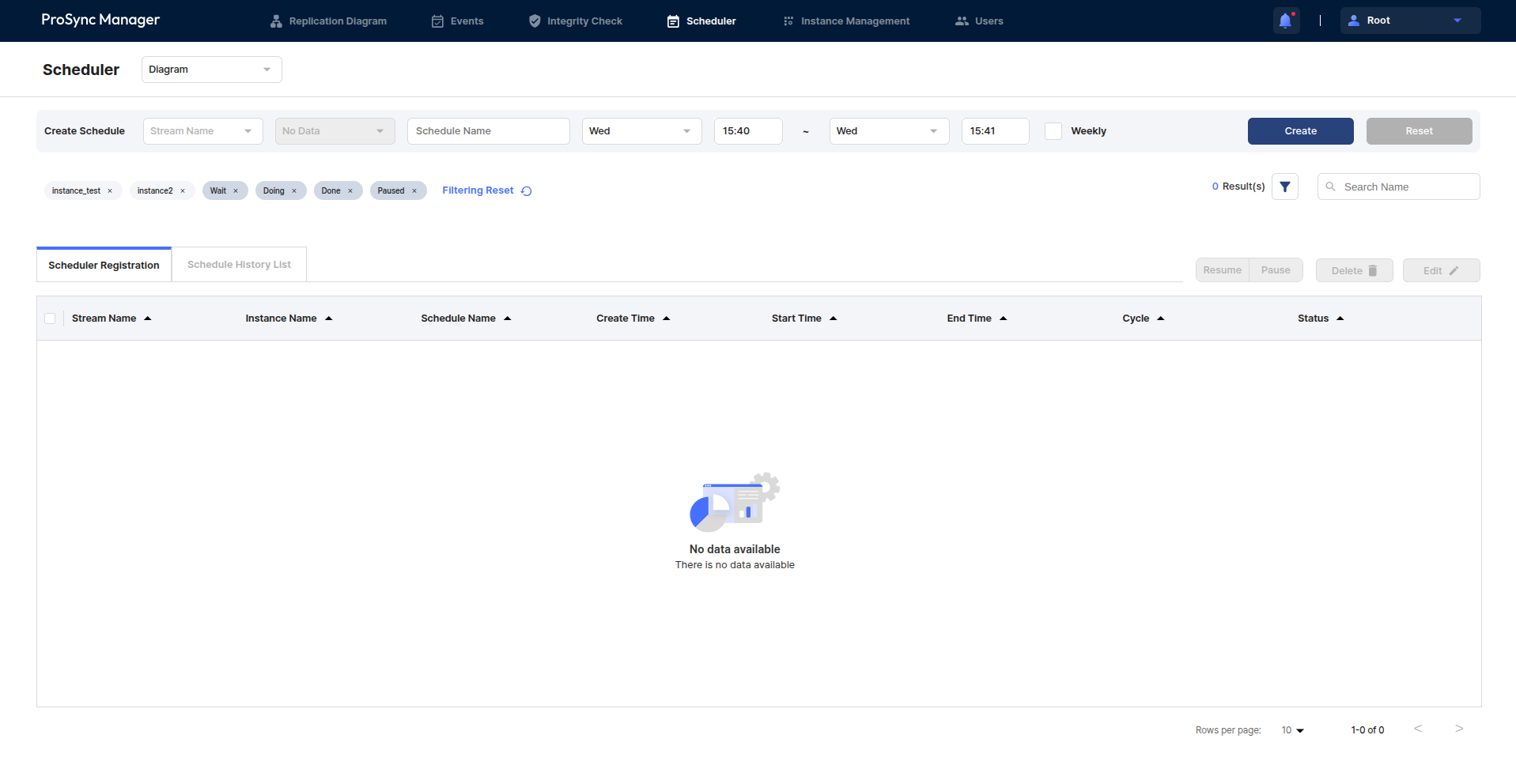
### Create Schedule&#x20;

The users can set up a Schedule to schedule state changes for the users Instances.

<table><thead><tr><th width="179">Item</th><th>Description</th></tr></thead><tbody><tr><td>Stream Name</td><td>The name of the Stream to which the Instance the users want to create a Schedule belongs.</td></tr><tr><td>Instance Name</td><td>The name of the Instance the users want to create a Schedule for. If the users select the All option, a schedule is created for all Instances.</td></tr><tr><td>Schedule Name</td><td>The unique name of the Schedule. The same name cannot exist within the same Instance.</td></tr><tr><td>Resume Time</td><td>The time to resume.</td></tr><tr><td>Pause Time</td><td>The time to pause.</td></tr><tr><td>Weekly</td><td>The button to repeat the schedule weekly.</td></tr></tbody></table>

### **Filtering** area

* The users can search among the created schedules by filtering by specific Instance, Scheduler status, and Schedule name.
* The left side shows the items used for filtering, which can be removed from filtering via the x button to the right of each filter tag or reset with the Filtering Reset button. These items can be specified via the filter button on the right.

### Schedule action buttons and delete, edit

* Resume / Pause: Allows the users to resume/pause the schedule.
* Delete and edit: Deletes and edits registered schedules.

### Scheduler Table

* This is the table where the users can see the list with all filtering applied.
* If the users want to change the behavior of the schedule, or delete or edit it, select the desired item in the table.

<table><thead><tr><th width="194">Item</th><th>Description</th></tr></thead><tbody><tr><td>Stream Name</td><td>The name of the Stream to which the Instance that the users want to create the Schedule belongs.</td></tr><tr><td>Instance Name</td><td>The name of the Instance that the users want to create the Schedule.</td></tr><tr><td>Schedule Name</td><td>The unique name of the Schedule. The same name cannot exist in the same Instance.</td></tr><tr><td>Create Time</td><td>The time when the schedule is created.</td></tr><tr><td>Start Time</td><td>The time when the resume action of the schedule is performed.</td></tr><tr><td>End Time</td><td>The time when the pause action of the schedule is performed.</td></tr><tr><td>Cycle</td><td>The weekly recurrence of the schedule.</td></tr><tr><td>Status</td><td>The progress status of the schedule.</td></tr></tbody></table>

#### Schedule Filtering

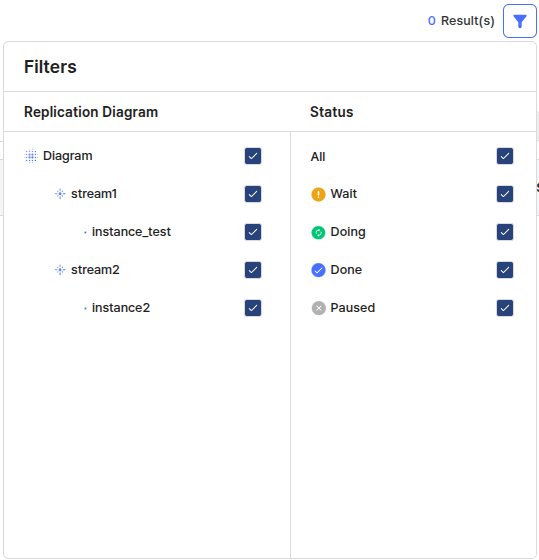
The users can utilize these filters when searching the Event table for more sophisticated searches.

<figure><img src="/files/L8DqqCHhratFjU4l4sNc" alt=""><figcaption></figcaption></figure>

**Replication Diagram area**

* The users can check a list of Streams - Instances that belong to the Diagram specified in the Diagram Filter in the header of the page.
* Select the Instances the users want to select/clear by the filtering criteria. \
  Select Stream if the users want to select/clear all instances in a Stream, or Diagram if the users want to select/clear all instances in the current Diagram.

**Schedule Status area**

All the status types available on the Scheduler registration tab.

<table data-full-width="false"><thead><tr><th width="100">Item</th><th width="632">Description</th></tr></thead><tbody><tr><td>Wait</td><td>The schedule is waiting because it has not yet reached the specified time.</td></tr><tr><td>Doing</td><td>The schedule is in progress because it has reached the Resume time of the specified time.</td></tr><tr><td>Done</td><td>The schedule is complete because it has reached both the Resume and Pause times of the specified time.</td></tr><tr><td>Paused</td><td>The schedule is disabled.</td></tr></tbody></table>

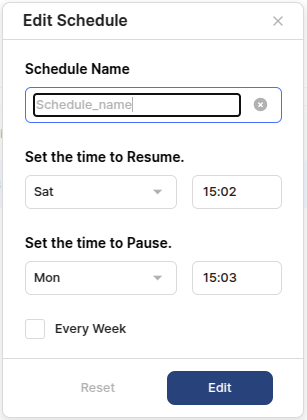
#### Scheduler Edit

Select the schedule the users want to edit to edit it. The editable items are Schedule Name, Resume Time, Pause Time, and whether to repeat.

<figure><img src="/files/UkFIx5YdyNlvqMREjpGD" alt=""><figcaption></figcaption></figure>

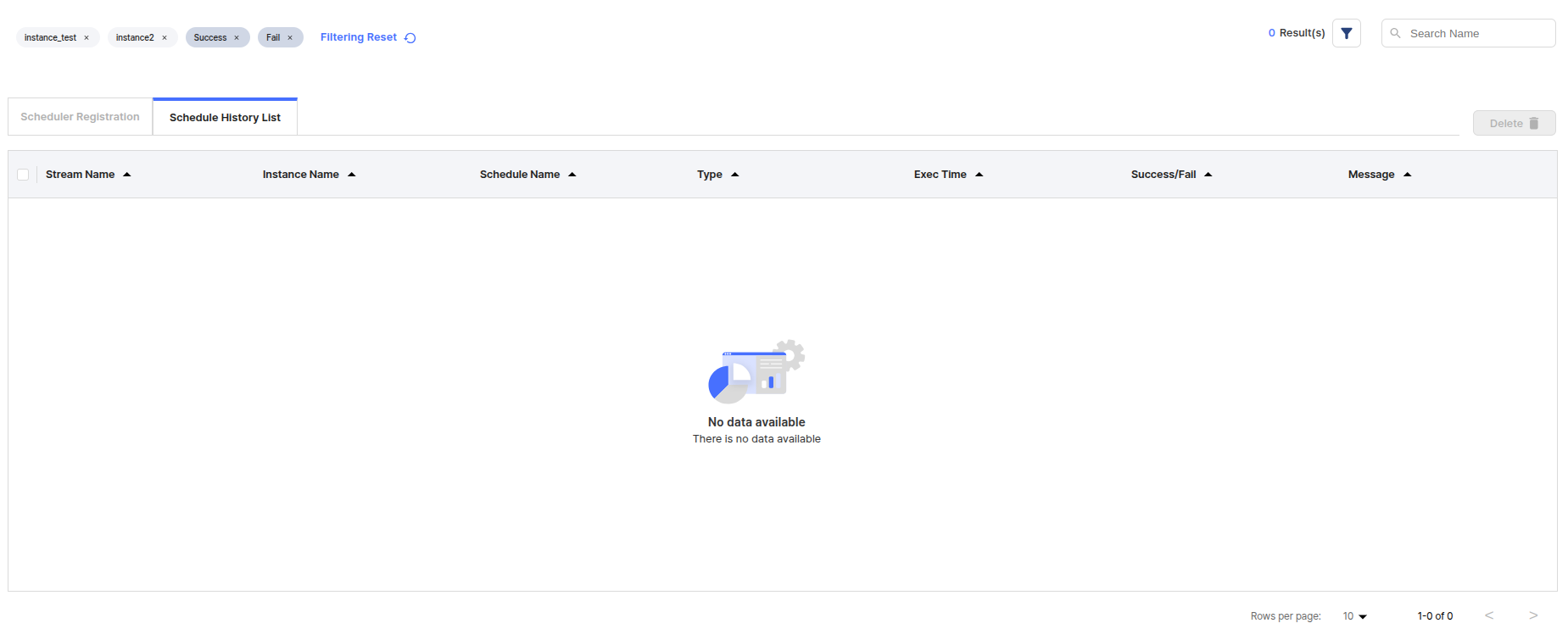
## Scheduler History List

<figure><img src="/files/djtialUXvmnYcF6Dssjj" alt=""><figcaption></figcaption></figure>

### **Filtering** area

* The users can search the schedule history by filtering by specific instance, scheduler status, and schedule name.
* The left side shows the items used for filtering, which can be removed from filtering via the x button to the right of each filter tag or reset with the Filtering Reset button. These items can be specified via the filter button on the right.

### Scheduler Table

* This is the table where the users can see the list with all filtering applied.
* If the users want to delete a schedule history, select the desired item in the table.

<table><thead><tr><th width="152">Item</th><th width="585">Description</th></tr></thead><tbody><tr><td>Stream Name</td><td>The name of the Stream to which the Instance in which the Scheduler History occurred belongs.</td></tr><tr><td>Instance Name</td><td>The name of the Instance in which the Scheduler History occurred.</td></tr><tr><td>Schedule Name</td><td>The name of the Schedule in which the Scheduler History occurred.</td></tr><tr><td>Type</td><td>The type of the Schedule in which the Scheduler History occurred, which consists of Resume and Pause.</td></tr><tr><td>Exec Time</td><td>The time at which the Schedule occurred.</td></tr><tr><td>Success/Fail</td><td>The success or failure of the Schedule.</td></tr><tr><td>Message</td><td>The message that occurred when the Schedule occurred.</td></tr></tbody></table>

###


---

# Agent Instructions
This documentation is published with GitBook. GitBook is the documentation platform designed so that both humans and AI agents can read, navigate, and reason over technical content effectively. Learn more at gitbook.com.

## Querying This Documentation
If you need additional information that is not directly available in this page, you can query the documentation dynamically by asking a question.

Perform an HTTP GET request on the current page URL with the `ask` query parameter, and the optional `goal` query parameter:

```
GET https://docs.tibero.com/prosyncmanager.en/prosync-manager-manual/scheduler.md?ask=<question>&goal=<endgoal>
```

`ask` is the immediate question: it should be specific, self-contained, and written in natural language.
`goal` is optional and describes the broader end goal you are ultimately trying to accomplish on behalf of the user. GitBook uses it to tailor the answer towards what is most useful for that goal.

The response will contain a direct answer to the question and relevant excerpts and sources from the documentation.

Use this mechanism when the answer is not explicitly present in the current page, you need clarification or additional context, or you want to retrieve related documentation sections.