> For the complete documentation index, see [llms.txt](https://docs.tibero.com/prosyncmanager.en/llms.txt). Markdown versions of documentation pages are available by appending `.md` to page URLs; this page is available as [Markdown](https://docs.tibero.com/prosyncmanager.en/prosync-manager-manual/users.md).

# Users

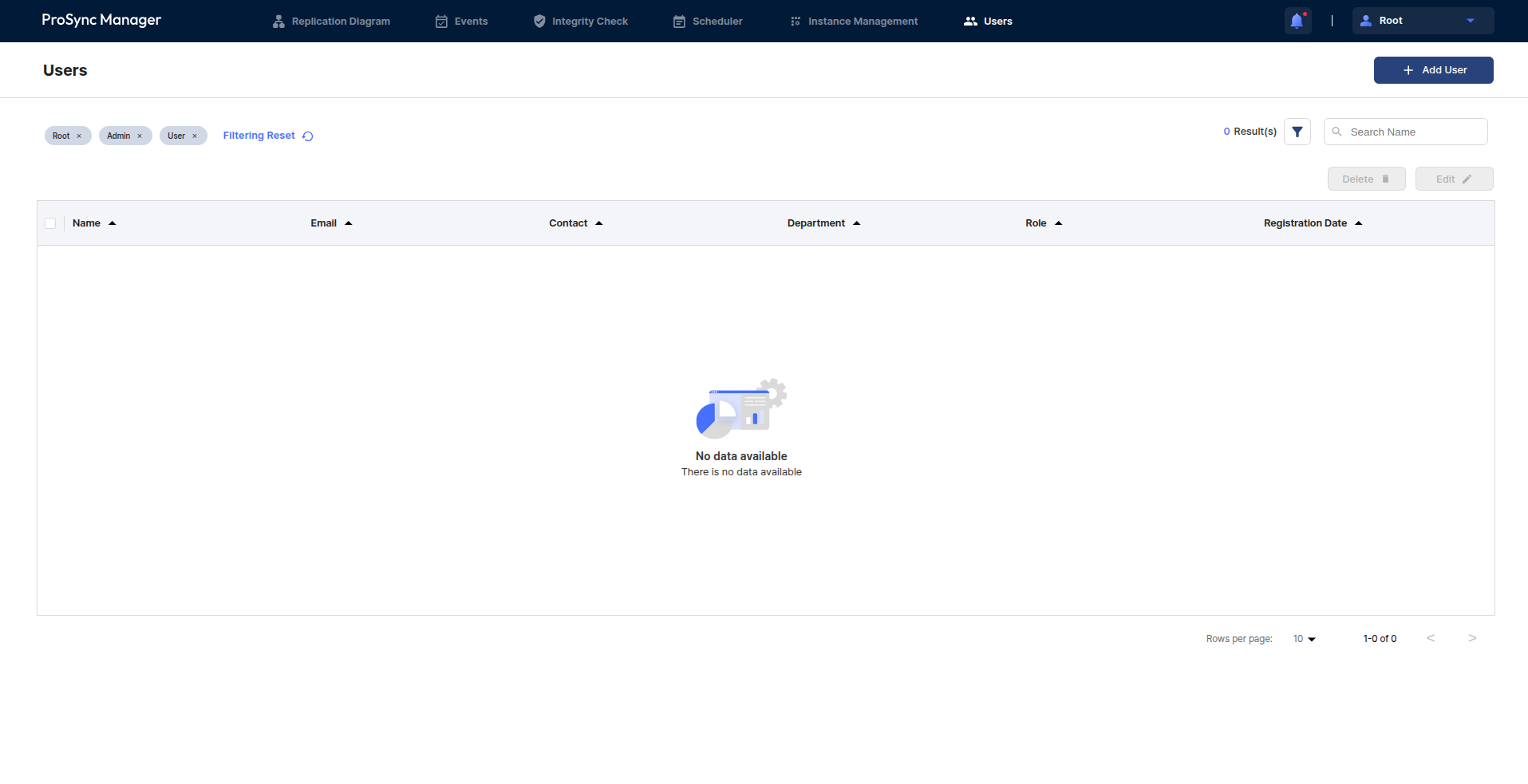
The users can manage which users can run or use ProSync Manager, and this page is not accessible to users in the User Role.

<figure><img src="/files/qF6MeKcDVuzCzAjlpjLb" alt=""><figcaption></figcaption></figure>

###

***

## User Role

Refer to the [**Glossary**](/prosyncmanager.en/prosync-manager-manual/getting-started/overview/glossary.md).

## Users area

### Add Users

* The users can be added to manage and use ProSync Manager.

### Filtering area

* The users can search among the created Users by filtering by a specific Role and User Name.
* The left side shows the items used for filtering, which can be removed from filtering via the x button to the right of each filter tag or reset with the Filtering Reset button. These items can be specified via the filter button on the right..

### Delete and edit users

* The registered users can be deleted and edited.

### User Table

* This is the table where the users can check the list with all filtering applied.

<table><thead><tr><th width="205">Item</th><th>Name</th></tr></thead><tbody><tr><td>Name</td><td>The name of each user.</td></tr><tr><td>Email</td><td>The email address of each user.</td></tr><tr><td>Contact</td><td>The contact of each user.</td></tr><tr><td>Department</td><td>The department of each user.</td></tr><tr><td>Role</td><td>The role of each user.</td></tr><tr><td>Registration Time</td><td>The time when the each user is registered.</td></tr></tbody></table>

###

***

## Users example

### Add User

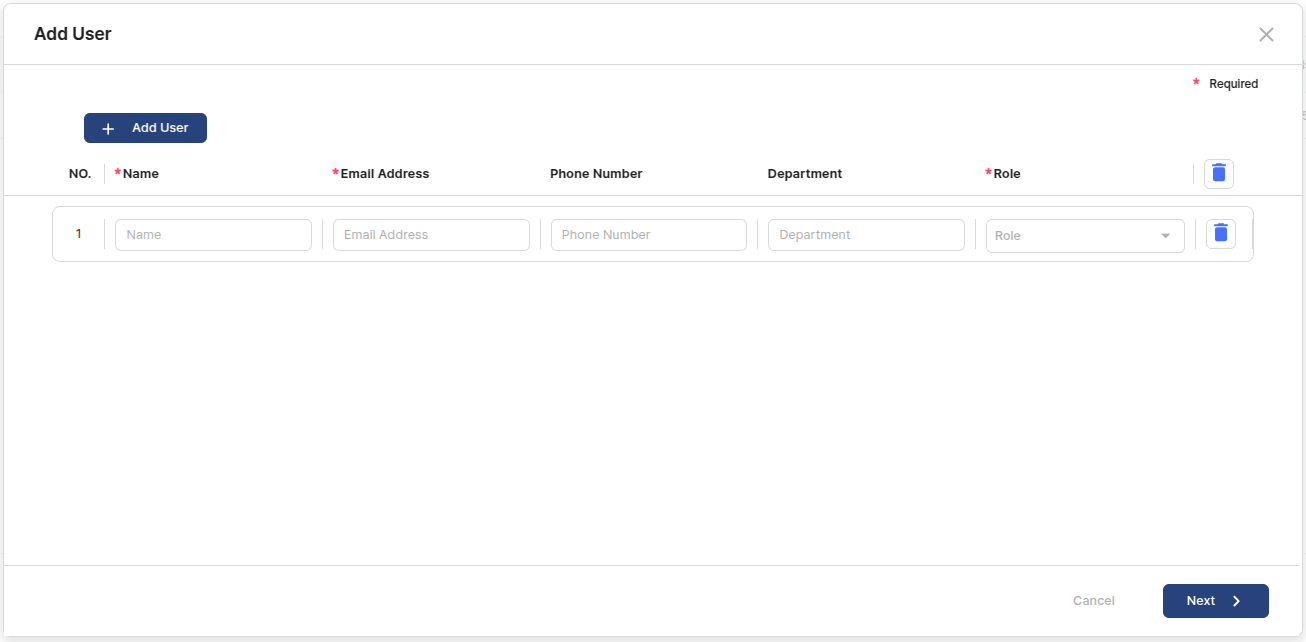
1. Add User

Enter the user information to register.&#x20;

<figure><img src="/files/Dw22A5p1z5l5CBTXDgLn" alt=""><figcaption></figcaption></figure>

<table><thead><tr><th width="180">Item</th><th width="408">Description</th><th>Required Item</th></tr></thead><tbody><tr><td>Add User</td><td>The button to add the list of user information.</td><td>-</td></tr><tr><td>Name</td><td>The name of users to be registered.</td><td>Y</td></tr><tr><td>Email Address</td><td>The email address of users to be registered.</td><td>Y</td></tr><tr><td>Phone Number</td><td>The phone number of users to be registered.</td><td>N</td></tr><tr><td>Department</td><td>The department of users to be registered.</td><td>N</td></tr><tr><td>Role</td><td><p>The role of users to be registered. </p><p>At this time, only roles with a lower rank than the currently logged in User Role can be created.</p></td><td>Y</td></tr></tbody></table>

<figure><img src="/files/YQY5E77Y2ZgzIm1L07xC" alt=""><figcaption><p>Delete button</p></figcaption></figure>

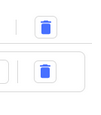
The users can check the header of the list and the Delete button in each list.

The Delete button in the header resets the input and list count for all lists, and the Delete button in each list deletes the corresponding list.

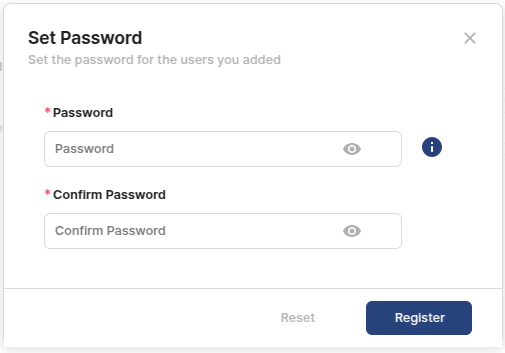
2. Set Password

<figure><img src="/files/KqxdjDsqIjAvpVinjuJq" alt=""><figcaption></figcaption></figure>

Set the password for the user to add.

<figure><img src="/files/u8Fno6bha601k71K63KC" alt=""><figcaption></figcaption></figure>

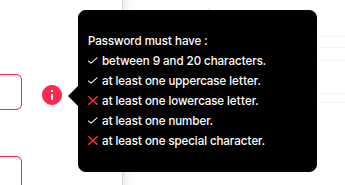
At this point, the users can check the conditions for setting the password via the info icon in the password field, and see which conditions are met and which are not.

{% hint style="info" %}
**Note**

The password must meet the following conditions.

* Set within 9 to 20 characters
* Requires at least one capitalization
* Contains at least one lowercase letter
* Contains at least one number
* Contains at least one special character
  {% endhint %}

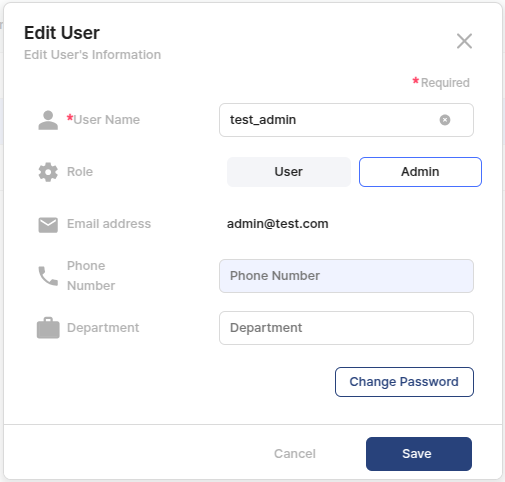
### User Edit

The users can edit the registered user information.&#x20;

In this case, the email address cannot be editted but the user's password can be changed.

<figure><img src="/files/vaVHhSBVil7RQTDdD1c1" alt=""><figcaption></figcaption></figure>

###


---

# Agent Instructions
This documentation is published with GitBook. GitBook is the documentation platform designed so that both humans and AI agents can read, navigate, and reason over technical content effectively. Learn more at gitbook.com.

## Querying This Documentation
If you need additional information that is not directly available in this page, you can query the documentation dynamically by asking a question.

Perform an HTTP GET request on the current page URL with the `ask` query parameter, and the optional `goal` query parameter:

```
GET https://docs.tibero.com/prosyncmanager.en/prosync-manager-manual/users.md?ask=<question>&goal=<endgoal>
```

`ask` is the immediate question: it should be specific, self-contained, and written in natural language.
`goal` is optional and describes the broader end goal you are ultimately trying to accomplish on behalf of the user. GitBook uses it to tailor the answer towards what is most useful for that goal.

The response will contain a direct answer to the question and relevant excerpts and sources from the documentation.

Use this mechanism when the answer is not explicitly present in the current page, you need clarification or additional context, or you want to retrieve related documentation sections.