
Parameter management
The users can view and manage the parameters required for the usersr database setup in OwlDB. For multi-cluster configurations, the management history is reflected in bulk. If the database operation status is not Running or the instance status is Recovery or Disconnect, the users cannot modify parameters.
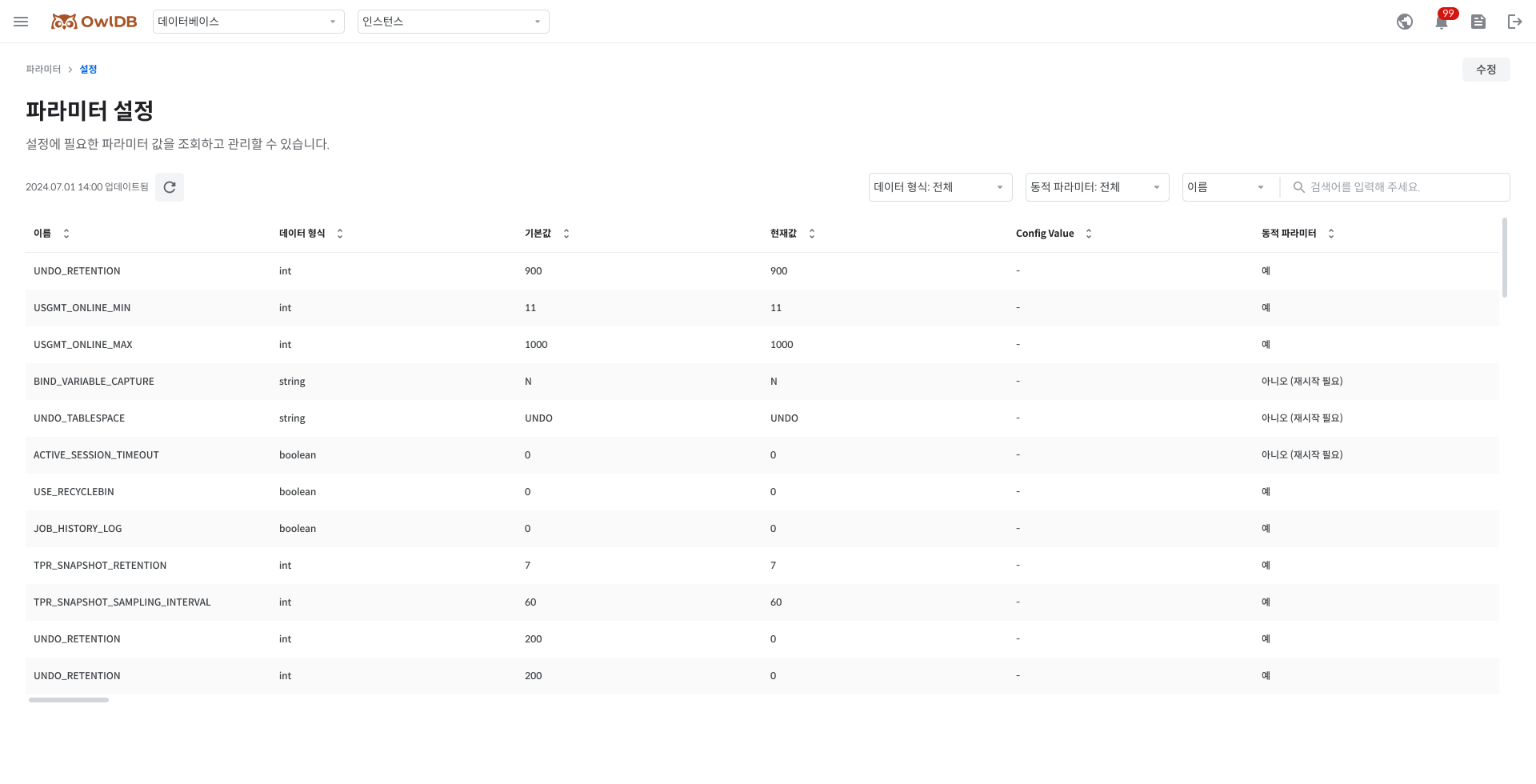
Veiwing Parameters
Navigate to the OwlDB Console screen > Administration > Parameters> setting menu.
Click DB Alias, Instance Alias drop-down buttons to pull down the database and instance for which the users want to set parameters.
View the list of parameters.
The users can filter by data type and whether it is a dynamic parameter.
The users can search and view the name and parameter value directly
Name
Parameter name
Data type
Parameter data type
Default Value
Parameter default value
Current Value
The current value of the parameter as set by the user
Config Value
Parameter value to be applied on restart (currently temporarily applied)
Dynamic Parameter
Whether the parameter is dynamic
Setting parameter (modify)
Navigate to the OwlDB Console screen > Administration > Parameters> setting menu.
Click the DB Alias, Instance Alias drop-down buttons to pull down the database and instance for which the users want to set the parameter.
Click the Edit button.
Modify parameter values.
The users can filter by data type and whether it is a dynamic parameter.
The users can search for and edit the name and parameter value directly.
Note
The parameter name highlighted in blue is the value the users are currently modifying.
Click the Import button to pull down the templates saved in 'Parameter Templates' to apply.
Click the Save button.
Note
If the users are modifying only dynamic parameters, the users can pull down the Save option.
Clicking the Save button will apply the modified values immediately without restarting the database.
If the users click the Save Temporarily button, the modifications will be applied temporarily. They will be restored to the Config Value value on a subsequent database restart.
Caution
If the users make modifications including static parameters, the database must be restarted for the modified values to take effect. Upon restart, all currently connected sessions will be terminated. It may take a few minutes before they are reactivated.
Parameter templates
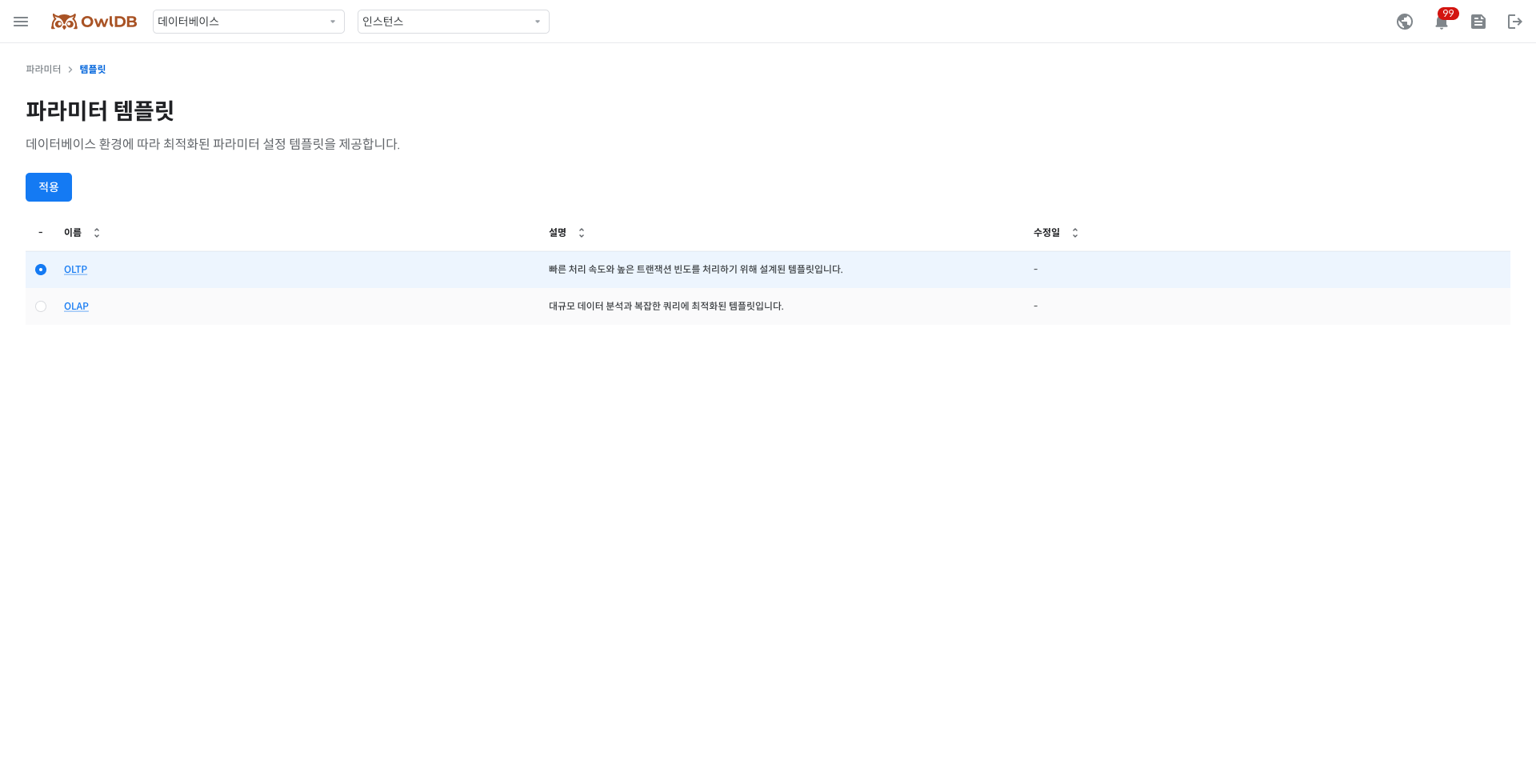
Navigate to the OwlDB console screen > Administration > Parameters > Templates menu.
Click the DB Alias, Instance Alias drop-down buttons to pull down the database and instance for which the users want to view parameter templates.
Check the list of parameter templates.
OLTP
Template designed to cope with fast processing speed and high transaction frequency
OLAP
Template optimized for large-scale data analysis and complex queries
Click the 'Parameter template name' to see the detailed parameter values.
The users can filter by data type and whether it is a dynamic parameter.
The users can search for names and parameter values directly.
Click the Apply button to apply the parameter template.
Caution
The database must be restarted for the modifications to take effect. Upon restart, all currently connected sessions will be terminated. It may take a few minutes before they are reactivated.Parameter Revision History
Parameter Revision History
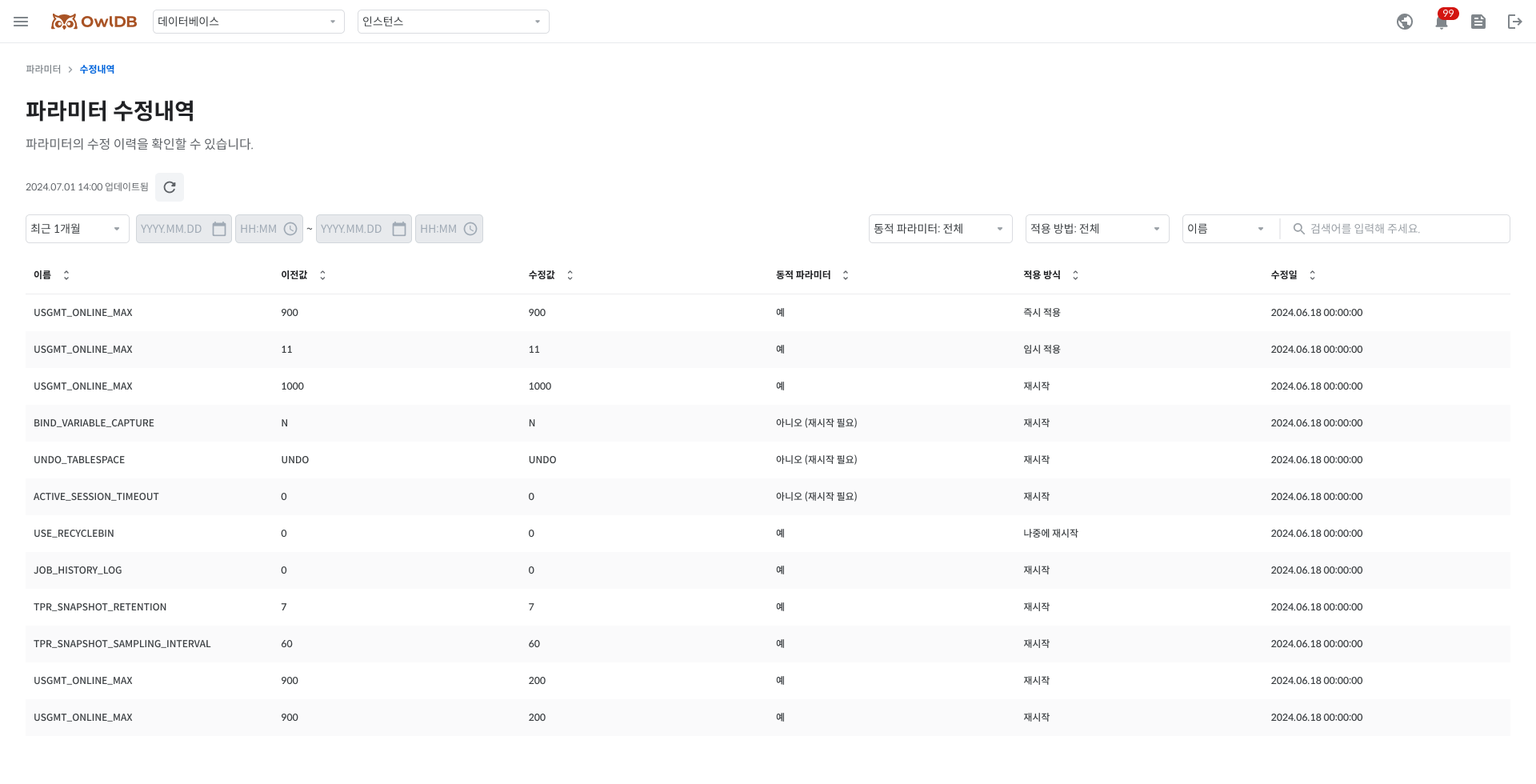
Navigate to OwlDB Console screen > Administration > Parameters > Modification History menu.
Click the DB Alias, Instance Alias drop-down buttons to pull down the database and instance for which the users want to check the parameter modification history.
Check the parameter modification history.
Last updated