
Card View
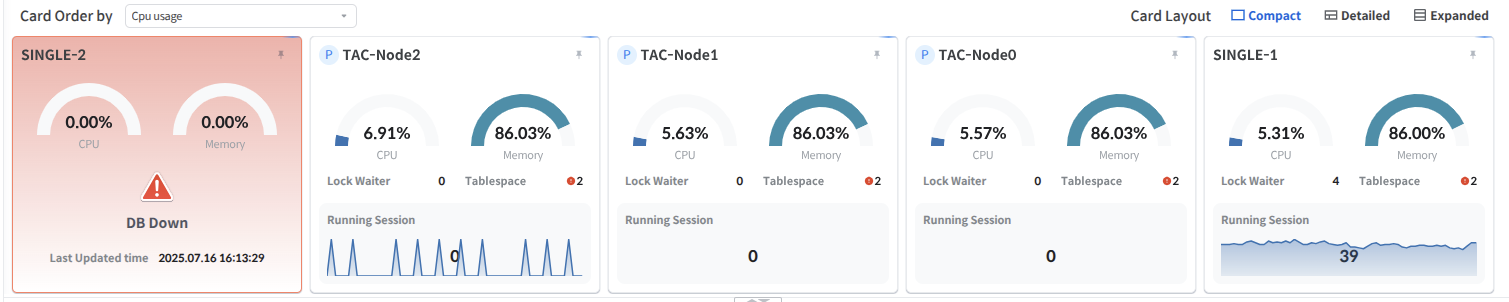
The users can view the status of the currently monitored instances and key monitoring data in a card view format.
The Card View refreshes every 3 seconds by default and displays cards sorted according to the Card Order By setting. (Refer to Card Sorting Criteria)
The users can switch between Compact / Detailed and Extended layout through the card layout button in the upper-left corner.
Common Features of Card View
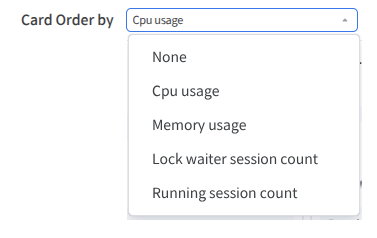
Sort the Card View by CPU Usage, Memory Usage, Lock Session Waiter Count, or Running Session Count.
When Refresh is performed, Card View is sorted according to the specified criteria. If None is selected, the cards are sorted in the order of the Instance Overview.
Pin feature
Click the pin button in the upper left corner to pin a card to the upper left corner.
If multiple card views are pinned, they will be fixed in the order they were pinned.
Card View Settings Panel

Displays the Updated Time of the Card View.
Click Compact / Detailed / Expanded on the right side of Card layout to change the Card View layout.
Note
The users can hide the Card View Settings Panel by using the Hide button in the upper right corner

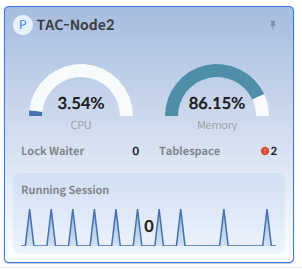
Card View selection feature
Click Card View to highlight a specific instance, similar to clicking an instance in Instance Overview.
When an instance is highlighted, the Custom Area at the bottom displays only the data of the highlighted instance instead of the metrics of all instances.
Last updated