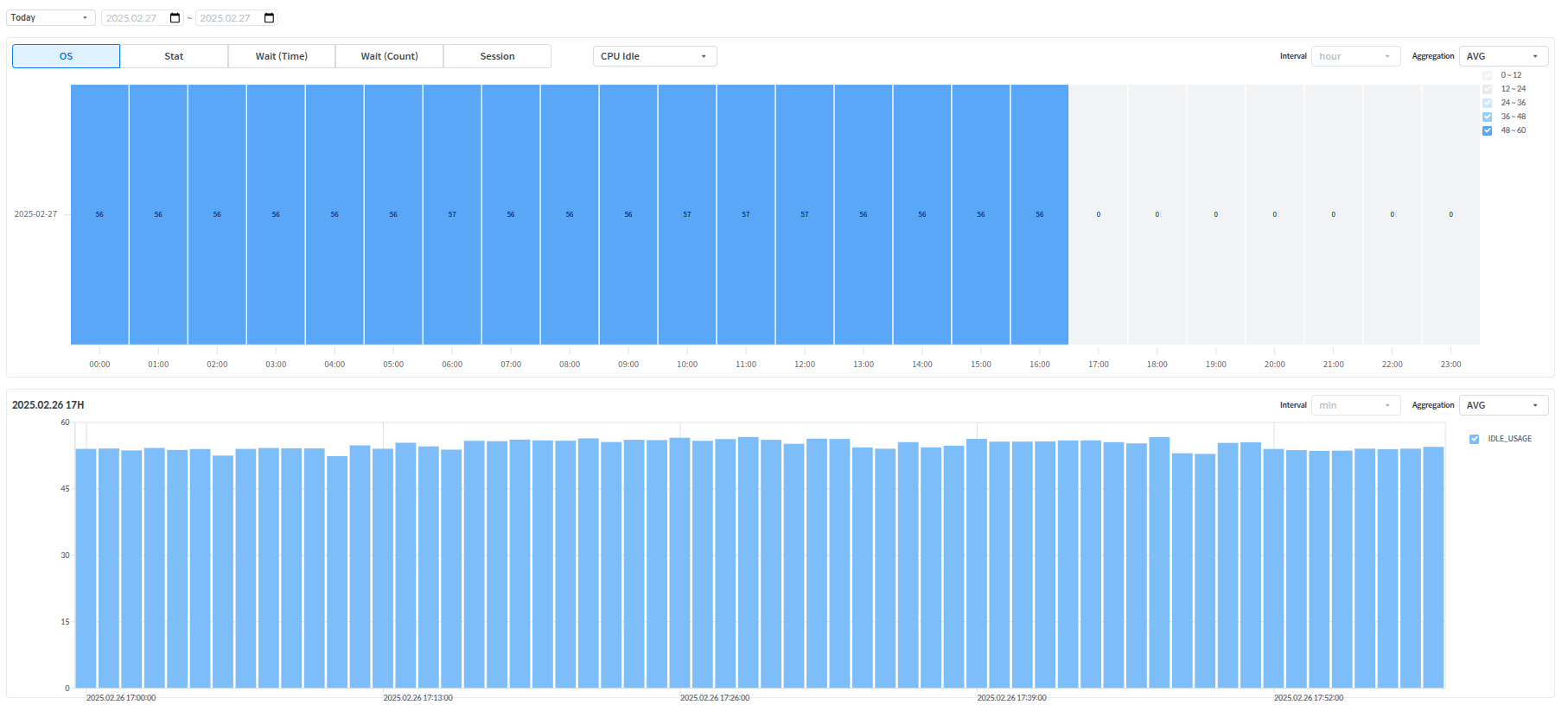
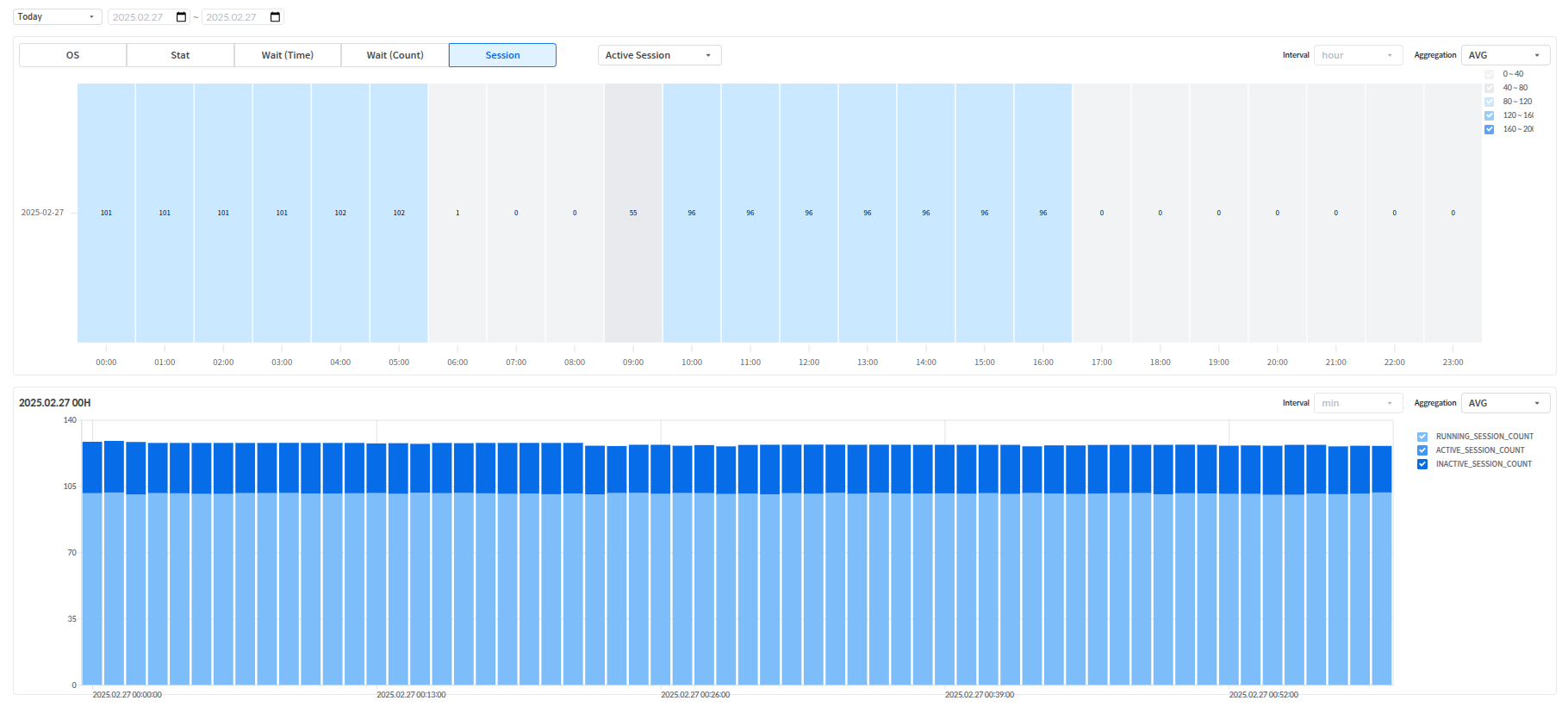
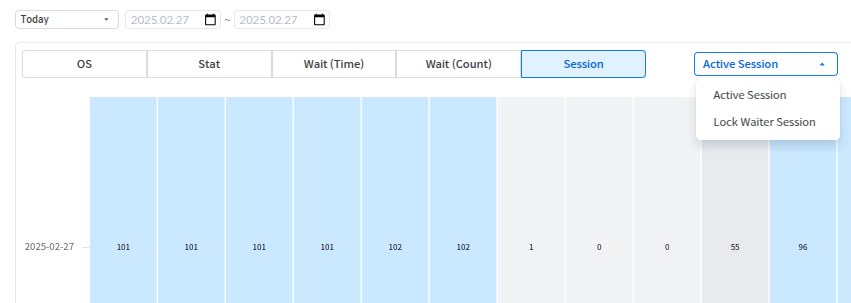
Provides a chart broken down by time units for the selected day. The users can use the [OS], [STAT], [WAIT(TIME)], [WAIT(COUNT)], and [SESSIONS] buttons at the top of the Heatmap Trend screen to view an overview of each metric's usage.
OS
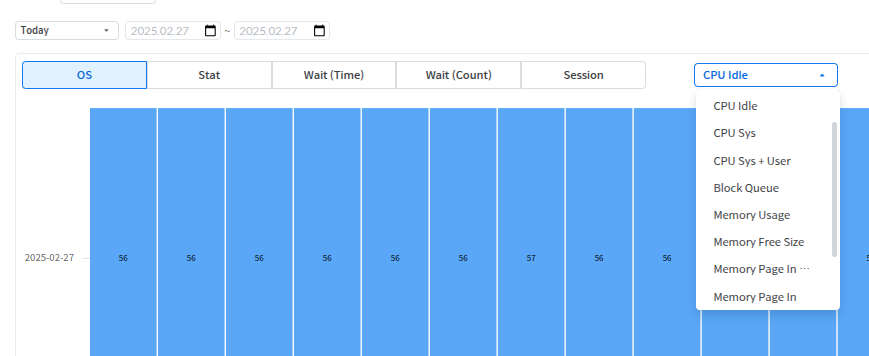
Displays a time-based chart showing the usage of OS-related items (e.g., 'CPU Idle', 'CPU Sys', 'Memory Usage', etc.).
Daily Hourly Chart - OS
The users can change the resource to view by using the combo box on the right side of the metric selection button area.
Select Daily Hourly Chart - OS - Resource
STAT
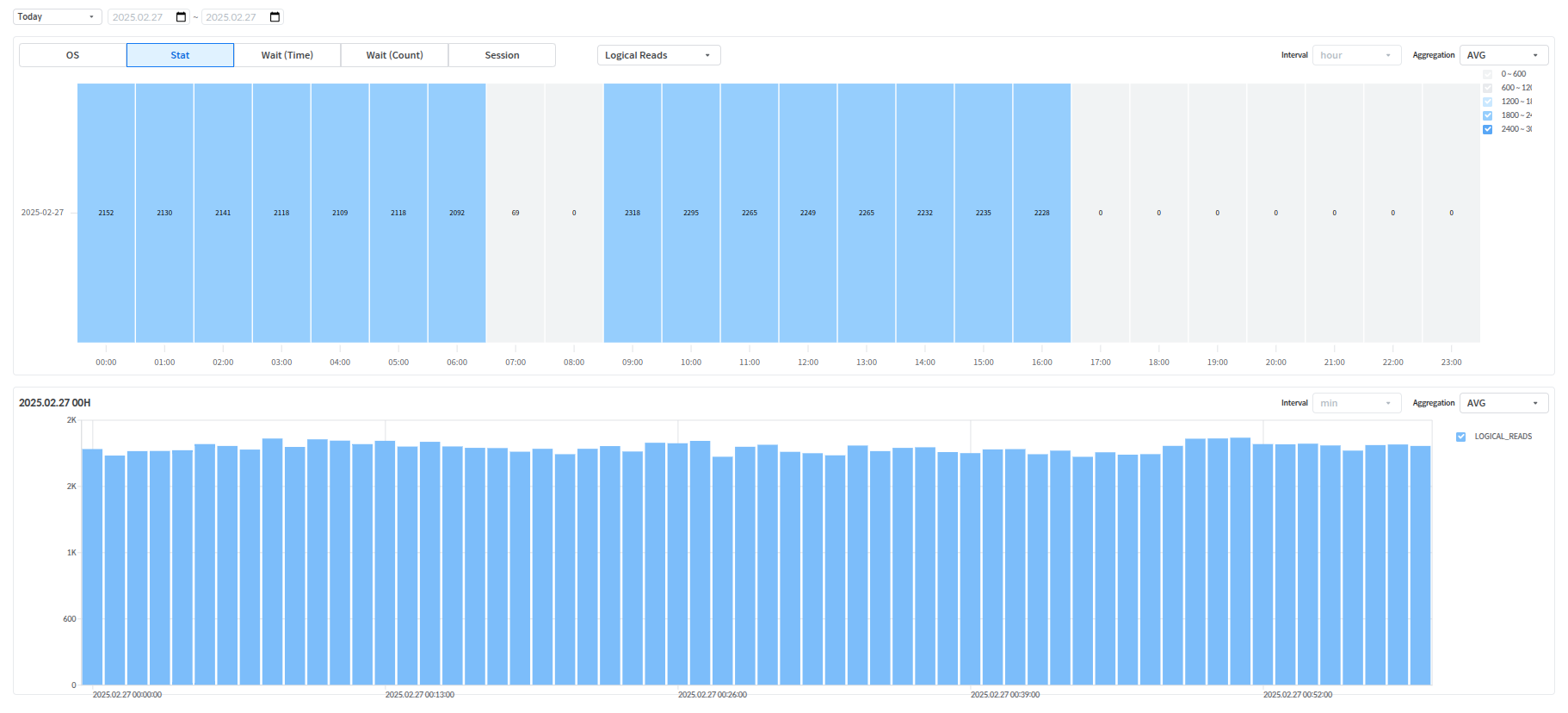
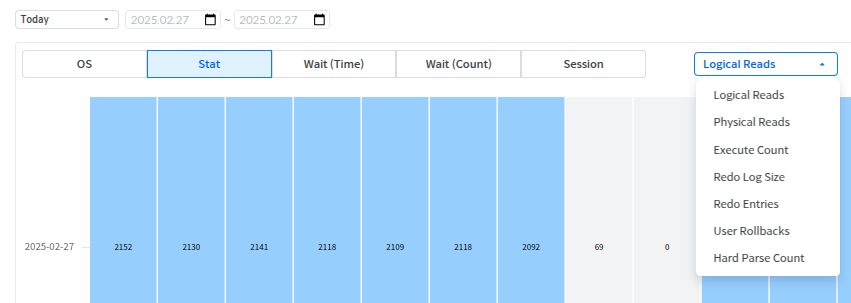
Views a time-based chart of the usage of Stat-related items (such as 'Logical Reads', 'Physical Reads', 'Execute Count', etc.).
Daily Hourly Chart - STAT
The users can change the resource to view by using the combo box on the right side of the indicator selection button area.
Select Daily Daily Hourly Chart - STAT - Resource
WAIT (TIME)
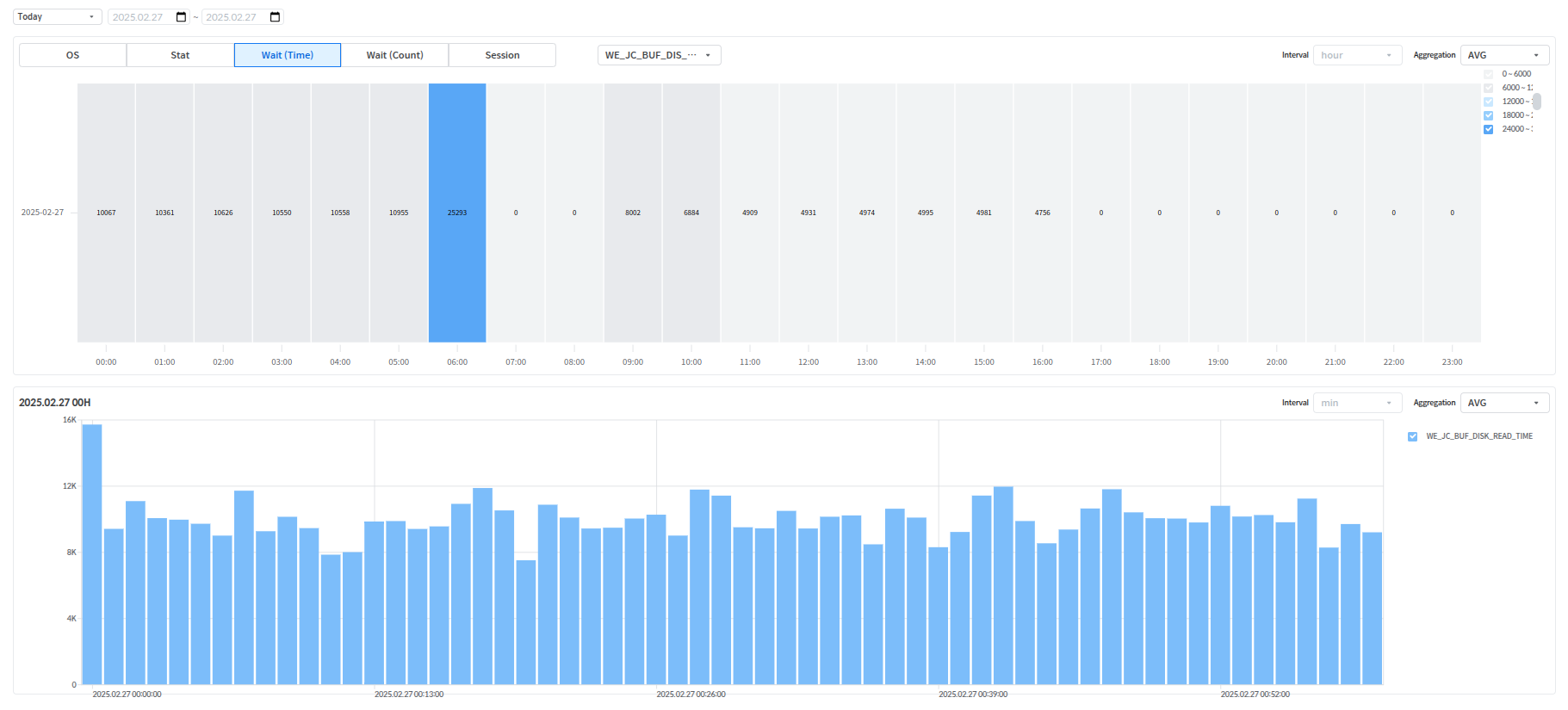
View time-based charts for the usage of WAIT-related items (such as 'WE_JC_BUF_DISK_READ_TIME', 'WE_BUF_FREE_TIME', etc.).
Daily Hourly Chart - WAIT(TIME)
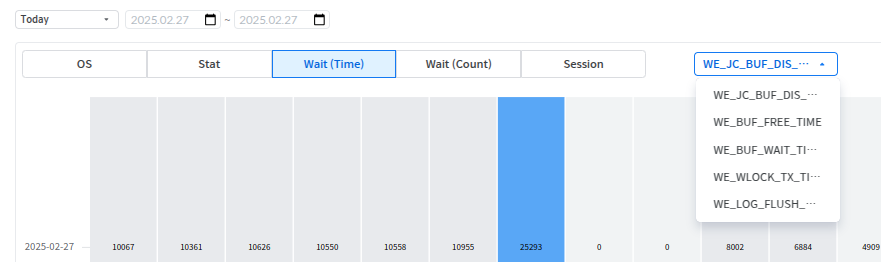
At this point, the users can change the resource to be viewed by using the combo box on the right side of the indicator selection button area
Select Daily Hourly Chart - WAIT(TIME) - Resource
WAIT (COUNT)
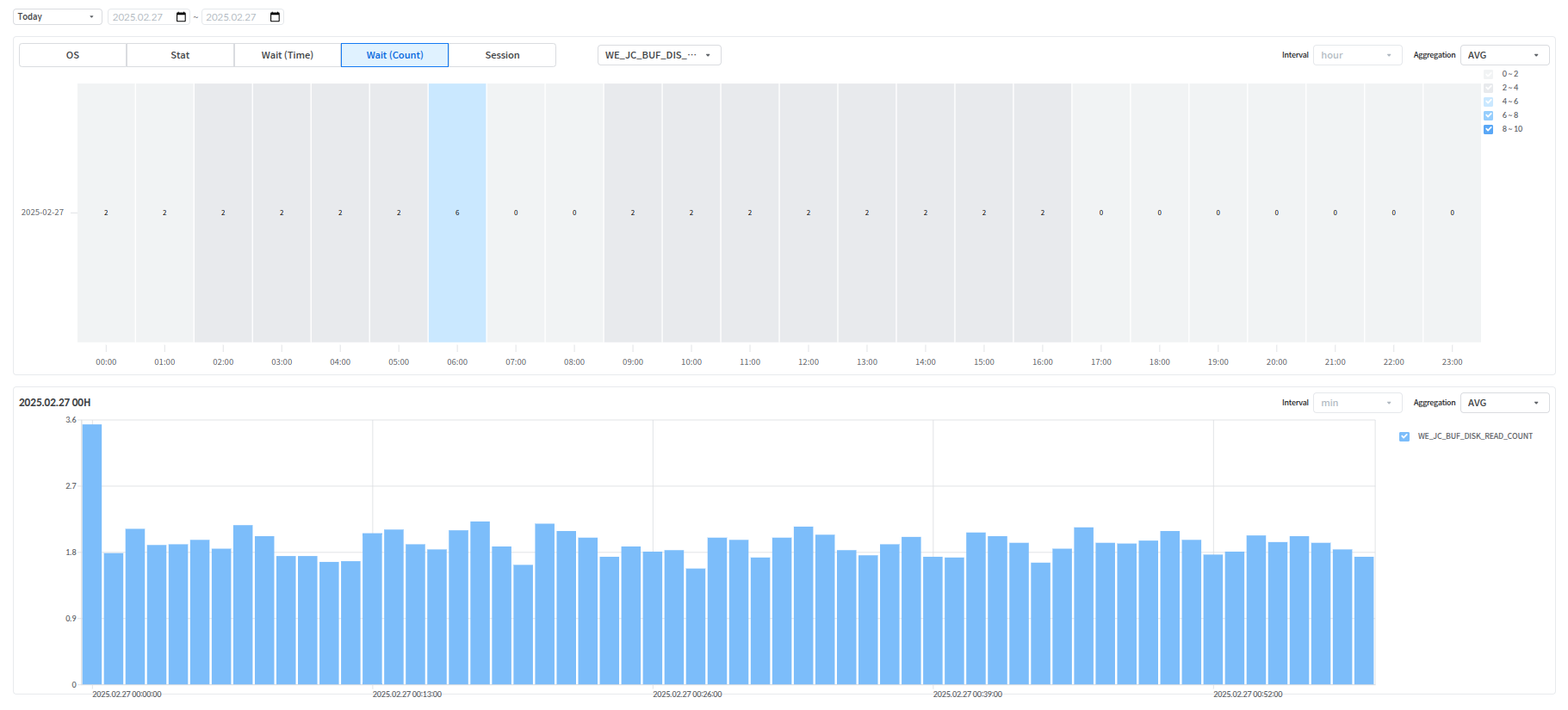
View time-based charts for the usage of items related to Wait Count ('WE_JC_BUF_DISK_READ_COUNT', 'WE_BUF_FREE_COUNT', etc.).
Daily Hourly Chart - WAIT(COUNT)
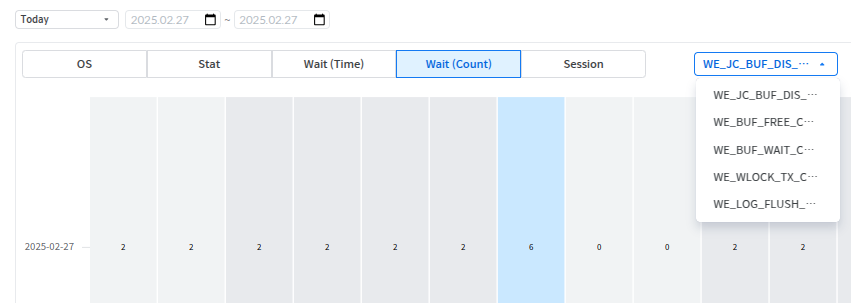
The users can change the resource to view by using the combo box on the right side of the indicator selection button area.