> For the complete documentation index, see [llms.txt](https://docs.tibero.com/tiberostudio/llms.txt). Markdown versions of documentation pages are available by appending `.md` to page URLs; this page is available as [Markdown](https://docs.tibero.com/tiberostudio/about/template.md).
# Template
Template 기능에 대해 소개한다.
Template 기능은 자주 사용하는 SQL문을 저장하고 필요할 때 불러와 재사용할 수 있게 해주는 기능이다. 이를 통해 반복적인 SQL 작성 작업을 줄이고 업무 효율성을 높일 수 있다.
**\[View] 메뉴 - \[Template] 메뉴** 선택 혹은, Editor Context Menu에서 **\[Template]** 메뉴 선택 시 애플리케이션 우측 영역에 Template 영역이 표시된다. 상단 영역에서는 Template Tree List 및 추가, 삭제, 편집 기능이 제공되고, 하단 영역에서는 Template의 내용을 미리 확인할 수 있는 Preview 영역을 제공한다.
Template
## Template 타입
### SQL Template
* 일반적인 SQL 쿼리문을 저장하여 재사용할 수 있다.
* SELECT, INSERT, UPDATE, DELETE 등 모든 유형의 SQL문을 저장할 수 있다.
### PSM Template
* Procedure, Function 등 PSM 코드를 저장할 수 있다.
* 복잡한 비즈니스 로직이 포함된 프로시저나 함수를 Template으로 관리할 수 있다.
* 데이터베이스 객체 생성 시 저장된 Template을 활용할 수 있다.
### User Defined Template
* 사용자가 정의한 커스텀 코드 조각을 저장할 수 있다.
* 자주 사용하는 코드 패턴이나 구문을 Template으로 저장할 수 있다.
* 자동완성 목록에 표시되어 코드 작성 시 쉽게 삽입할 수 있다.
## Template 사용
Template Tree 아이템을 **더블 클릭**하면 현재 포커싱된 에디터에 해당 Template 내용이 자동으로 입력된다. User Defined Template의 경우 **Editor에서 자동완성 목록으로 Template 이름**을 표시해 주는데 해당 Template 이름을 선택할 경우 Template의 내용이 Editor에 자동으로 입력된다.
Auto Complete
## Template 추가
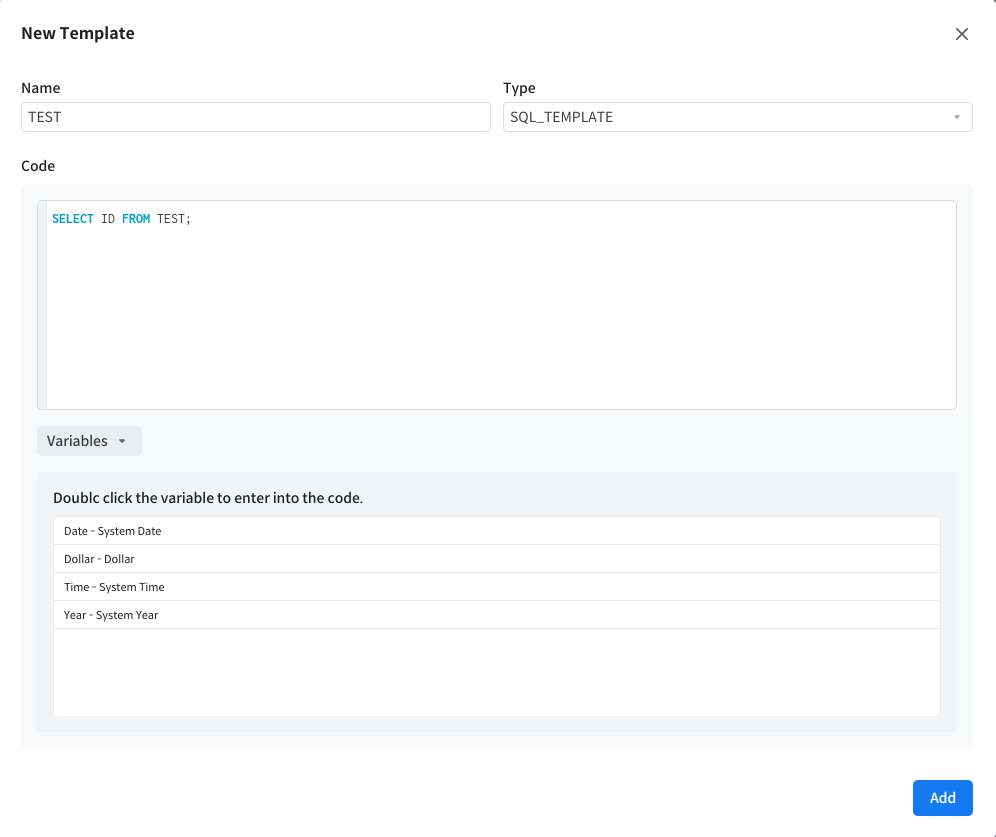
Template 영역 상단에서  버튼 클릭 시 Template을 추가할 수 있는 Modal 창이 표시된다. 혹은 추가하고 싶은 위치의 Template의 Context Menu에서 **Insert Template 메뉴** 클릭 시 Template을 추가할 수 있는 Modal 창이 표시된다.
Add Template
입력할 수 있는 정보는 다음과 같다.
#### Name
Template의 이름이다. 같은 Type 내에서는 이름이 중복될 수 없다.
#### Type
Template의 타입이다. SQL, PSM, User Defined를 선택할 수 있다.
#### Code
Template의 내용이다. Keyword 자동완성, 기본적인 Context Menu 기능을 지원한다.
#### Variables
더블 클릭 시 다양한 데이터 값 삽입을 지원한다.
## Template 수정
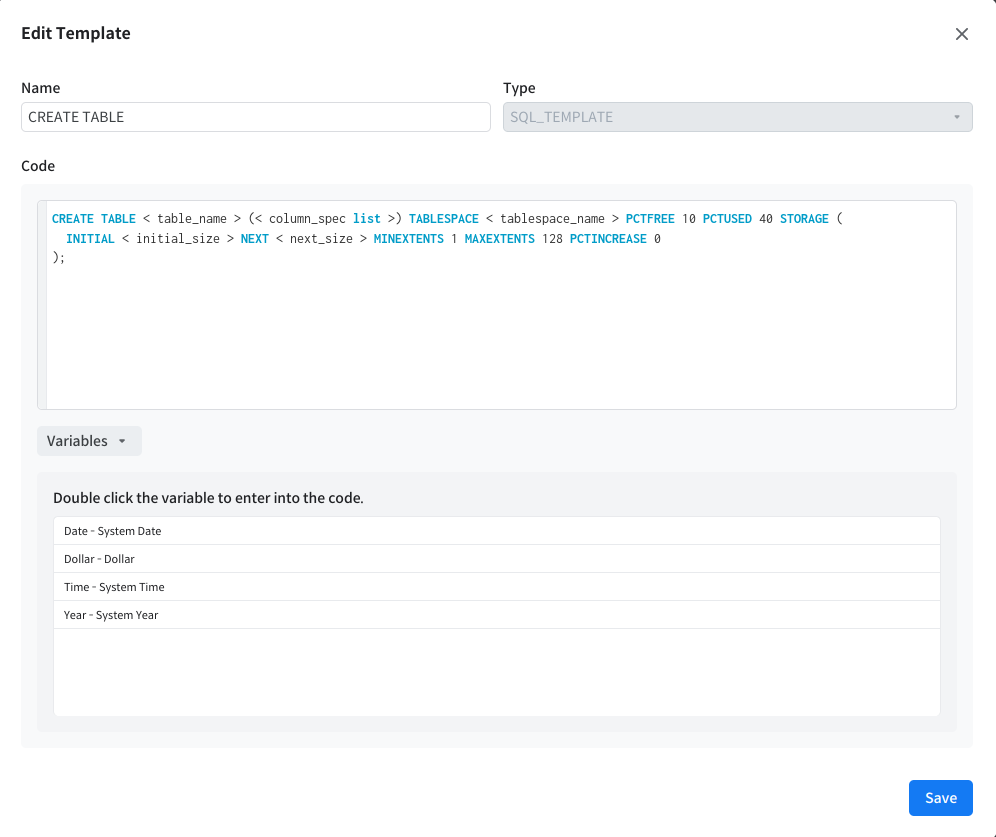
수정하고 싶은 Template Tree 아이템의 Context Menu에서 **Edit 메뉴**를 클릭하면 Template을 수정할 수 있는 Modal창이 표시된다. 단, Template Type은 수정할 수 없다.
Edit Template
## Template 삭제
삭제하고 싶은 Template Tree 아이템의 Context Menu에서 **Delete 메뉴** 클릭 시 원하는 Template을 삭제할 수 있다.
## Reset Template
상단 영역의 버튼 클릭 시 Template을 최초 상태로 되돌릴 수 있다. SQL, PSM Template을 기본 제공 Template 리스트로 되돌리고 User Defined 리스트는 모두 제거하게 된다.
###
.png)
.png)
 버튼 클릭 시 Template을 최초 상태로 되돌릴 수 있다. SQL, PSM Template을 기본 제공 Template 리스트로 되돌리고 User Defined 리스트는 모두 제거하게 된다.
###
버튼 클릭 시 Template을 최초 상태로 되돌릴 수 있다. SQL, PSM Template을 기본 제공 Template 리스트로 되돌리고 User Defined 리스트는 모두 제거하게 된다.
###