> For the complete documentation index, see [llms.txt](https://docs.tibero.com/tiberostudio.en/llms.txt). Markdown versions of documentation pages are available by appending `.md` to page URLs; this page is available as [Markdown](https://docs.tibero.com/tiberostudio.en/about/sql-editor/result.md). Agents can also search and read this documentation through its [MCP server](https://docs.tibero.com/tiberostudio.en/~gitbook/mcp).
# Checking the execution results
It describes how to check the result of SQL execution.
### DBMS Output
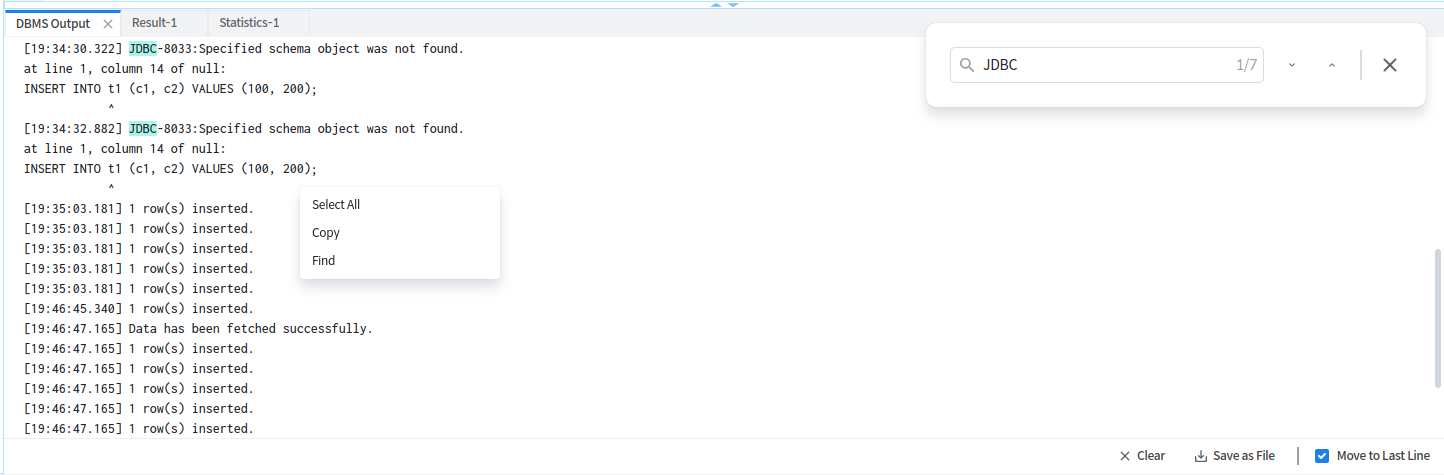
Figure 1. DBMS Output
The DBMS Output tab displays SQL execution result messages, error messages, and response time. In addition, the following operations can be performed.
| Features | Description |
| ------------ | ---------------------------------------------------------- |
| Clear | Deletes all output messages. |
| Save as File | Saves the output message to a file. |
| Find | Finds the desired text via the `Find` menu in the context. |
### Statistics
Figure 2. Statistics
The Statistics tab is created only when the users run a Task that contains DML statements except SELECT statements, and they can check the statistics of the Task's execution results. The users can view the following information in Statistics.
| Name | Description |
| ------------ | ---------------------------------------------------------- |
| Query Count | The number of SQL included in the Task |
| Updated Rows | The number of rows added, modified, or deleted due to DML. |
| Execute Time | Time spent on execution (ms) |
| Fetch Time | Time spent on fetching data (ms) |
| Start Time | The time to execute Task |
| Finish Time | The time to end Task |
### Result
Figure 3. Result
The users can view the execution result of the SELECT statement. For a detailed description of the features, refer to \[Manipulating Result]]\(control-result-data.md).
On the Result tab, The users can view the following information.
| Name | Description |
| --------------------- | ----------------------------------------------------------------------------------------------------------------------------------------------------------------------------------------------------------------------------------------------- |
| Executed SQL | Executed SQL |
| Column list | The list of columns in the viewed object |
| Value list | The list of values in the viewed object |
| Row per page | The number of rows to display on a page |
| Page Number | The current page number |
| Execution Information |
The number of Rows Fetched from Database - Execution Time (ms), on SQL Execution Time
|
### Error
#### 1. Check an error on the Result Tab
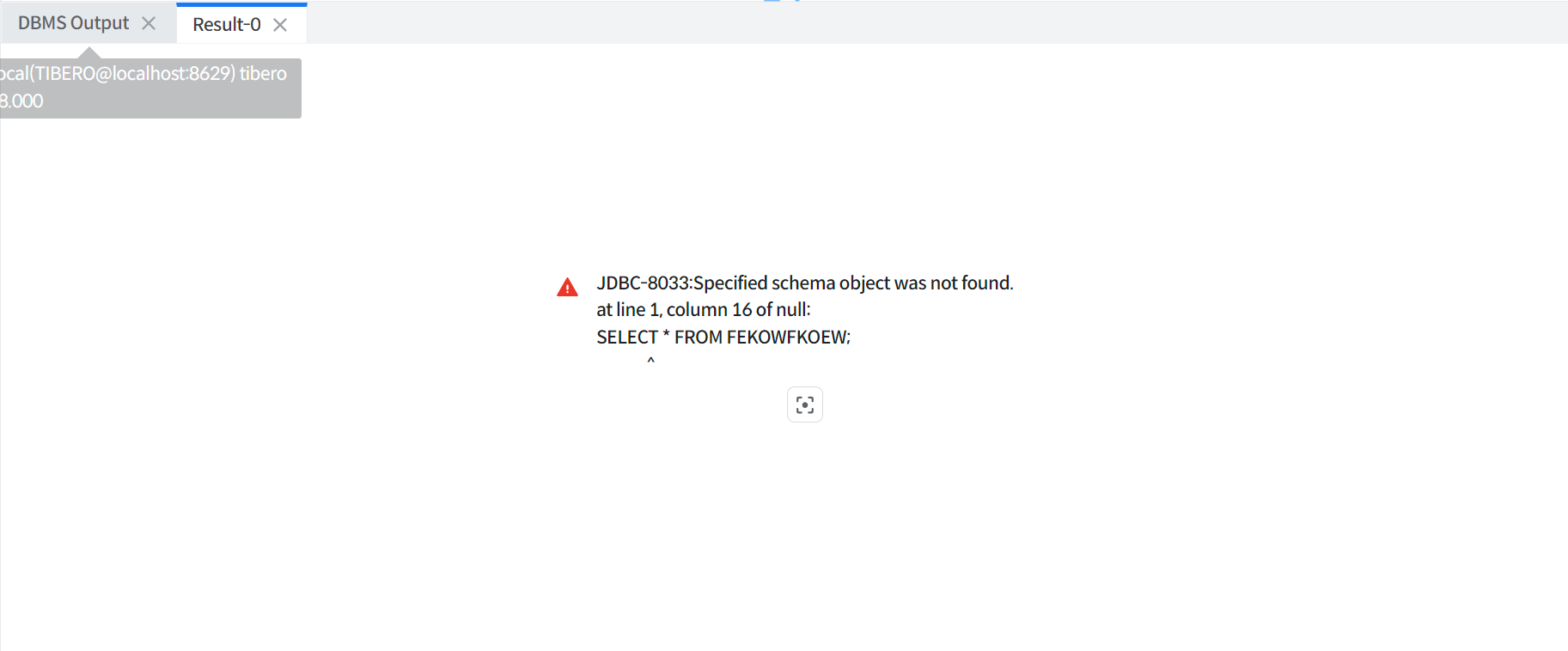
Figure 4. Error - 1
The users can check the error message on the Result Tab, and run the highlighting of the SQL where the error occurred by clicking the button.
#### 2. Check an error in Editor
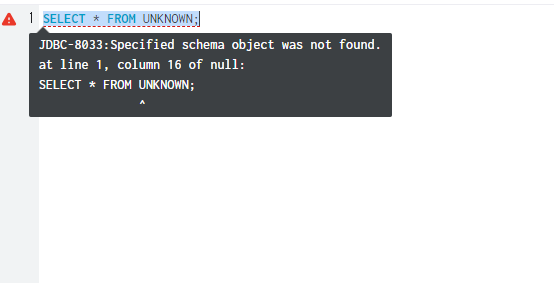
Figure 5. Error - 2
The red underline is displayed in the SQL area where the error occurred, and the detailed error message is displayed in the form of a tooltip when the cursor is placed on it.
#### 3. **Error for multiple SQL operations**
Figure 6. Error - 3
When an error occurs during multiple SQL operations, the users can manage whether to add more operations in the dialog.
| Name | Description |
| ----------------------------- | -------------------------------------------------------------------------------- |
| Applicable to Only this Error | After checking the error for this SQL, the next SQL will be run normally. |
| Applicable to All Same Errors | Based on the JDBC error number, skip all errors that are the same as this error. |
| Applicable to All Errors | Skips all errors. |
| Stop Running Task | Stops the currently running Task from running. |
###


 button.
#### 2. Check an error in Editor