> For the complete documentation index, see [llms.txt](https://docs.tibero.com/tiberostudio.en/llms.txt). Markdown versions of documentation pages are available by appending `.md` to page URLs; this page is available as [Markdown](https://docs.tibero.com/tiberostudio.en/about/sql-editor/export-data.md). Agents can also search and read this documentation through its [MCP server](https://docs.tibero.com/tiberostudio.en/~gitbook/mcp).

# Export Data

Saves the results of running SELECT SQL statements in various forms and options.

{% hint style="warning" %}
**Caution**

For concurrency efficiency, run the SQL again in a separate session from the editor session to fetch all the data before exporting it. Note that the actual data exported may vary depending on the state of transaction management.
{% endhint %}

Click the ![](https://content.gitbook.com/content/nNfkYJbwJttSkGBYdvi9/blobs/TuIdTassHr0CNAUFG8Pn/image.png)  icon at the bottom of the result to display a modal window where the users can set the export options. In the Export Modal window, proceed with the export operation by setting the information in two steps.

## 1. Export Setting

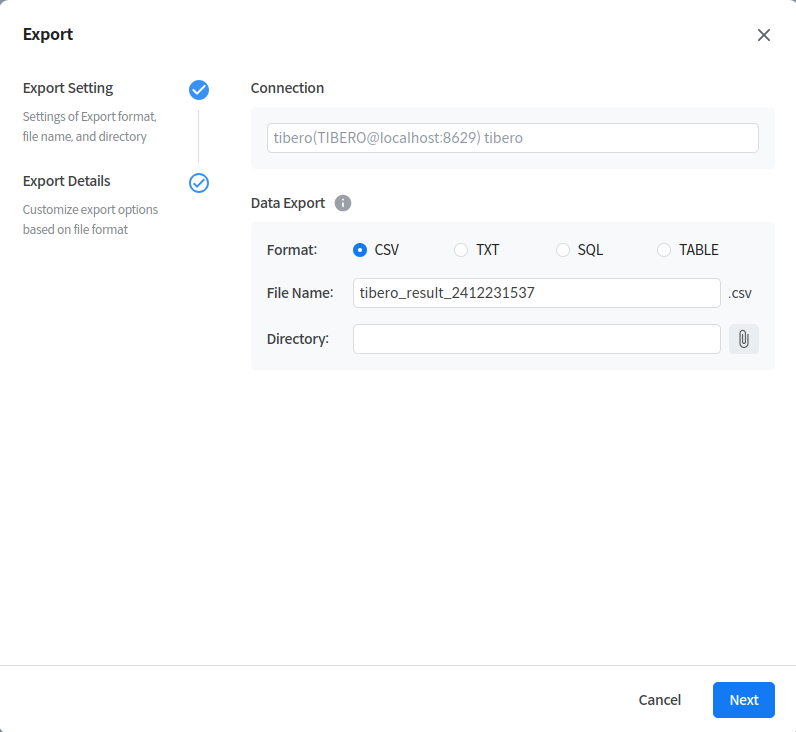
<figure><img src="https://content.gitbook.com/content/nNfkYJbwJttSkGBYdvi9/blobs/JAchcLBxYOILHnP4doyY/image.png" alt="" width="563"><figcaption><p>Figure 1. Export Setting</p></figcaption></figure>

#### Connection

It shows the information of the editor session that ran SQL. Note that when the actual export operation is performed, the SQL is executed again and the information is the same as the editor session, but the export is performed in a different session.

#### Format

Set the type of result to be exported. Currently, `CSV TXT SQL TABLE` is supported.

#### File Name

Set the name of the file to save.

#### Directory

Set the directory to save the file.

## 2. Export Details

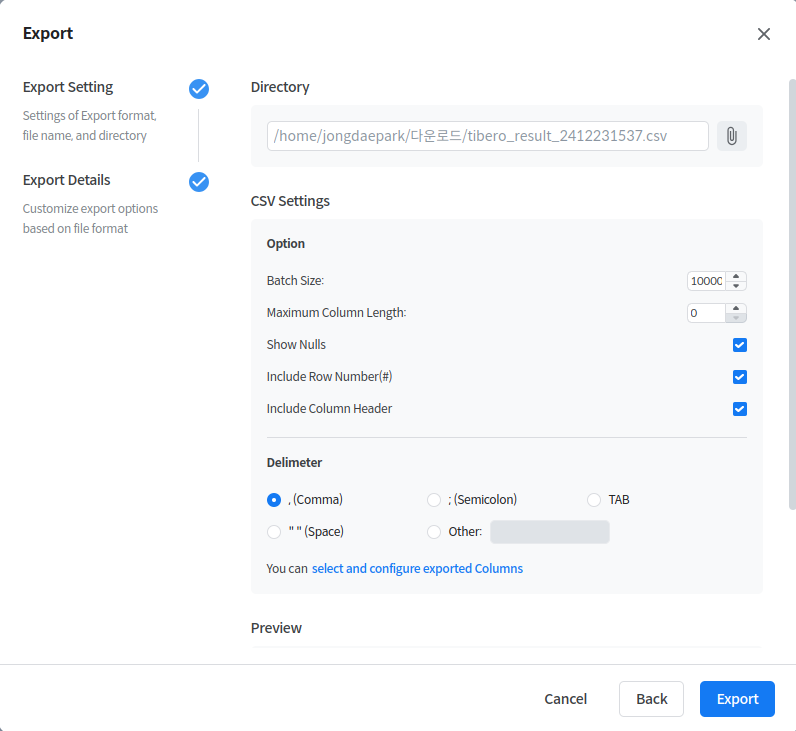
Set the details of the file. The detail options are different for each format The users set in step 1, so this section explains the detail options for each format type.

### CSV

<figure><img src="https://content.gitbook.com/content/nNfkYJbwJttSkGBYdvi9/blobs/yJwIxPuKLxrDebWt4BW8/image.png" alt="" width="563"><figcaption><p>Figure 2. CSV Details</p></figcaption></figure>

<table><thead><tr><th width="240.8262939453125" valign="bottom">Option</th><th valign="bottom">Description</th></tr></thead><tbody><tr><td valign="bottom">Batch Size</td><td valign="bottom">Sets the number of rows of data to write to the file per unit of work. This allows The users to control memory usage when exporting large amounts of data. It is important to set an appropriate Batch Size because large values can increase the speed but can significantly increase memory usage.</td></tr><tr><td valign="bottom">Maximum Column Length</td><td valign="bottom">Set the maximum length of the values. If set to 0, the data will be output in full with no maximum length.</td></tr><tr><td valign="bottom">Show Nulls</td><td valign="bottom">This option specifies whether to display NULL values. If checked, NULL values are displayed as the string 'NULL', and if unchecked, they are displayed as empty values.</td></tr><tr><td valign="bottom">Include Row Number(#)</td><td valign="bottom">This option specifies whether to include row numbers.</td></tr><tr><td valign="bottom">Include Column Header</td><td valign="bottom">This option specifies whether to include column headers.</td></tr><tr><td valign="bottom">Delimiter</td><td valign="bottom">Sets the delimiter of the values.</td></tr></tbody></table>

&#x20;Click the <img src="https://content.gitbook.com/content/nNfkYJbwJttSkGBYdvi9/blobs/W9nt52NV9llO99qc4sds/image.png" alt="" data-size="original">  button to set whether to export the column.

<figure><img src="https://content.gitbook.com/content/nNfkYJbwJttSkGBYdvi9/blobs/Yz5wXYcMSQiMS5Fv1oTh/image.png" alt="" width="375"><figcaption><p>Figure 3. Export Column Setting</p></figcaption></figure>

### TXT

<figure><img src="https://content.gitbook.com/content/nNfkYJbwJttSkGBYdvi9/blobs/KHDfacLIEhhTmstT37Vc/image.png" alt="" width="563"><figcaption><p>Figure 4. TXT Details</p></figcaption></figure>

<table><thead><tr><th width="233.64910888671875" valign="bottom">Option</th><th valign="bottom">Description</th></tr></thead><tbody><tr><td valign="bottom">Batch Size</td><td valign="bottom">Sets the number of rows of data to write to the file per unit of work. This allows The users to control memory usage when exporting large amounts of data. It is important to set the appropriate Batch Size because large values can increase the speed but can significantly increase memory usage.</td></tr><tr><td valign="bottom">Maximum Column Length</td><td valign="bottom">Set the maximum length of the values. If set to 0, the data will be output in full with no maximum length.</td></tr><tr><td valign="bottom">Show Nulls</td><td valign="bottom">This option specifies whether to display NULL values. If checked, NULL values are displayed as the string 'NULL', and if unchecked, they are displayed as empty values.</td></tr><tr><td valign="bottom">Include Row Number(#)</td><td valign="bottom">This option specifies whether to include row numbers.</td></tr><tr><td valign="bottom">Include Column Header</td><td valign="bottom">This option specifies whether to include column headers.</td></tr><tr><td valign="bottom">Delimiter</td><td valign="bottom">Sets the delimiter of the values.</td></tr><tr><td valign="bottom">Add a delimiter at the START of the row</td><td valign="bottom">Inserts a delimiter at the beginning of the row.</td></tr><tr><td valign="bottom">Add a delimiter at the END of the row</td><td valign="bottom">Inserts a delimiter at the end of the row.</td></tr><tr><td valign="bottom">In-between delimiter</td><td valign="bottom">Sets whether delimiter is enabled or disabled.</td></tr></tbody></table>

### SQL

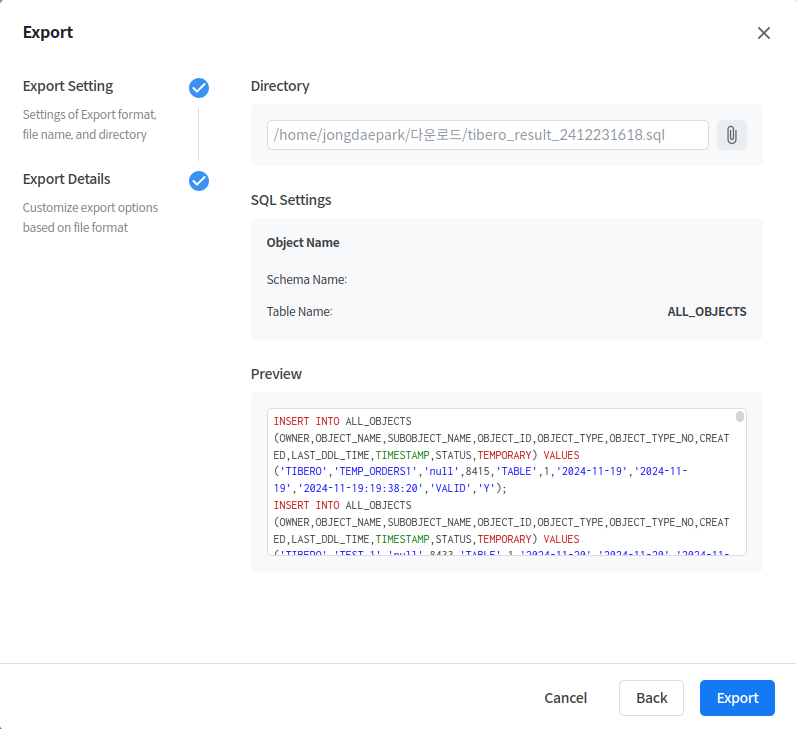
Generates an INSERT syntax based on the data in the object and saves it as a .sql file.

<figure><img src="https://content.gitbook.com/content/nNfkYJbwJttSkGBYdvi9/blobs/EL2x5mFqbecpSTj5bsxm/image.png" alt="" width="563"><figcaption><p>Figure 5. SQL Details</p></figcaption></figure>

### Table

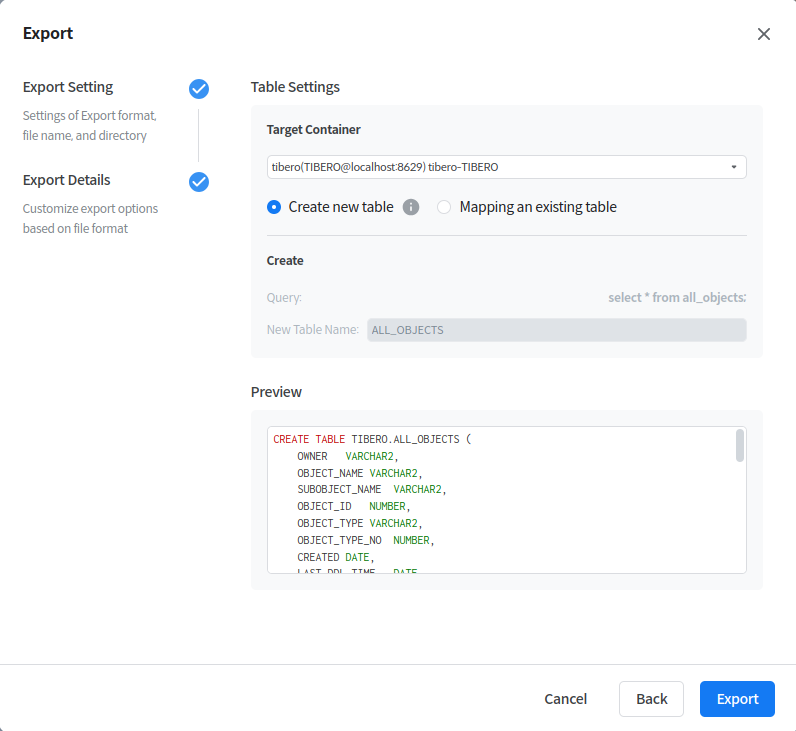
Moves the data contents of the current object to another object.

<figure><img src="https://content.gitbook.com/content/nNfkYJbwJttSkGBYdvi9/blobs/xi1pBOvk8NTf95azW5zO/image.png" alt="" width="563"><figcaption><p>Figure 6. Table Details</p></figcaption></figure>

<table><thead><tr><th width="239.23138427734375" valign="bottom">Option</th><th valign="bottom">Description</th></tr></thead><tbody><tr><td valign="bottom">Target Container</td><td valign="bottom">Sets the target schema.</td></tr><tr><td valign="bottom">Create new table</td><td valign="bottom">When creating a table, excludes all constraints and configures only column names, data values, and data types in the resulting grid.</td></tr><tr><td valign="bottom">Mapping an existing table</td><td valign="bottom">Set an existing object as the Target.</td></tr></tbody></table>

## Check export task status

<figure><img src="https://content.gitbook.com/content/nNfkYJbwJttSkGBYdvi9/blobs/KubbajedaGjNWGHNsSZz/image.png" alt=""><figcaption><p>Figure 7. Export Task Status</p></figcaption></figure>

The users can check the status of an export task by clicking the  ![](https://content.gitbook.com/content/nNfkYJbwJttSkGBYdvi9/blobs/A57hDjyCZ8RKs7y75hVR/image.png) button on the top right of the application. Click the list to open the corresponding file.

###