> For the complete documentation index, see [llms.txt](https://docs.tibero.com/tiberostudio.en/llms.txt). Markdown versions of documentation pages are available by appending `.md` to page URLs; this page is available as [Markdown](https://docs.tibero.com/tiberostudio.en/about/psm-editor/run-psm.md). Agents can also search and read this documentation through its [MCP server](https://docs.tibero.com/tiberostudio.en/~gitbook/mcp).

# Executing PSM

## Compile

The users can compile PSM statements except anonymous statements through the compile button on the Toolbar, Run Query > Compile from the Context Menu or the shortcut (Ctrl+Shift+P).

If the compile succeeds, a success message is displayed and the CRAETE (OR REPLACE) syntax is executed.

If it fails, an error message is displayed and the error is displayed on the Error tab.

<figure><img src="https://content.gitbook.com/content/nNfkYJbwJttSkGBYdvi9/blobs/RuInVqZK2tWqZGhImj0L/image.png" alt=""><figcaption><p>Figure 1. Compile success screen</p></figcaption></figure>

<figure><img src="https://content.gitbook.com/content/nNfkYJbwJttSkGBYdvi9/blobs/p1yX8LmaEKLSWcyZMtVs/image.png" alt=""><figcaption><p>Figure 2. Compile fail screen</p></figcaption></figure>

## Run

The users can execute PSM statements, including anonymous statements through clicking the PSM Run button on the Toolbar, Run Query > Run from the Context Menu, or using the shortcut (Ctrl+Shift+N).

### Anonymous statements

If the users create an anonymous statement and run it, the text accumulated in the buffer is displayed on the Result > DBMS Output tab along with a message when the execution is successful.

<figure><img src="https://content.gitbook.com/content/nNfkYJbwJttSkGBYdvi9/blobs/JXvmr0wYu7T7XHgnRfKR/image.png" alt=""><figcaption><p>Figure 3. Executing Anonymous Statement</p></figcaption></figure>

### Procedure, Function

{% hint style="warning" %}
**Note**

When running the CRAETE (OR REPLACE) syntax, 'Run' does not actually create an Object.\
Therefore, Compile must be preceded.
{% endhint %}

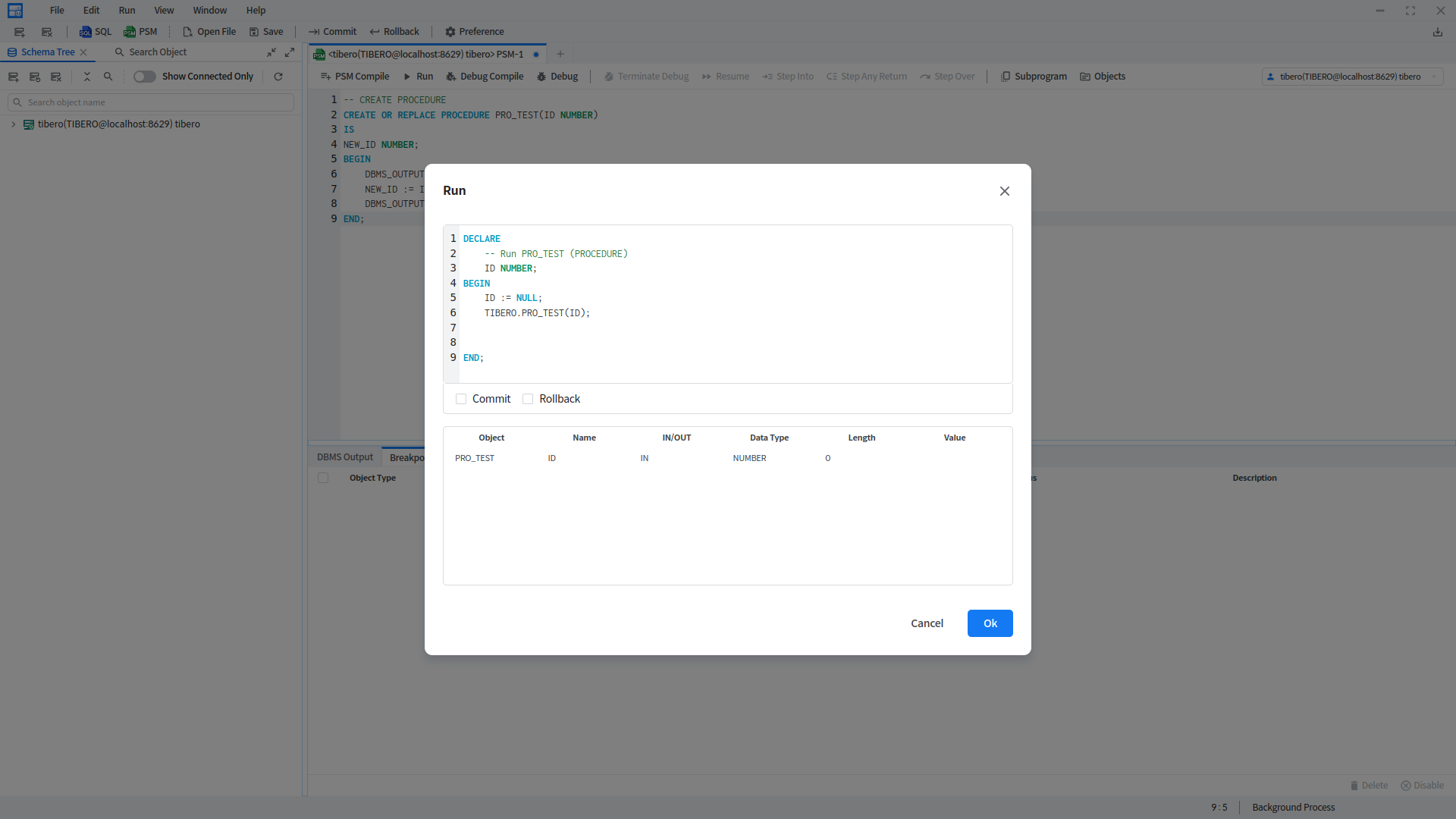
For Procedure and Function statements, when Run is executed, the Parameter input window is displayed. The window is divided into two main areas: the PSM Block area at the top and the Parameter list area at the bottom.

In the PSM Block area at the top, the users can see the PSM statements that are converted to anonymous statements and actually executed. The users can also specify whether to commit or roll back using the Commit and Rollback checkboxes.

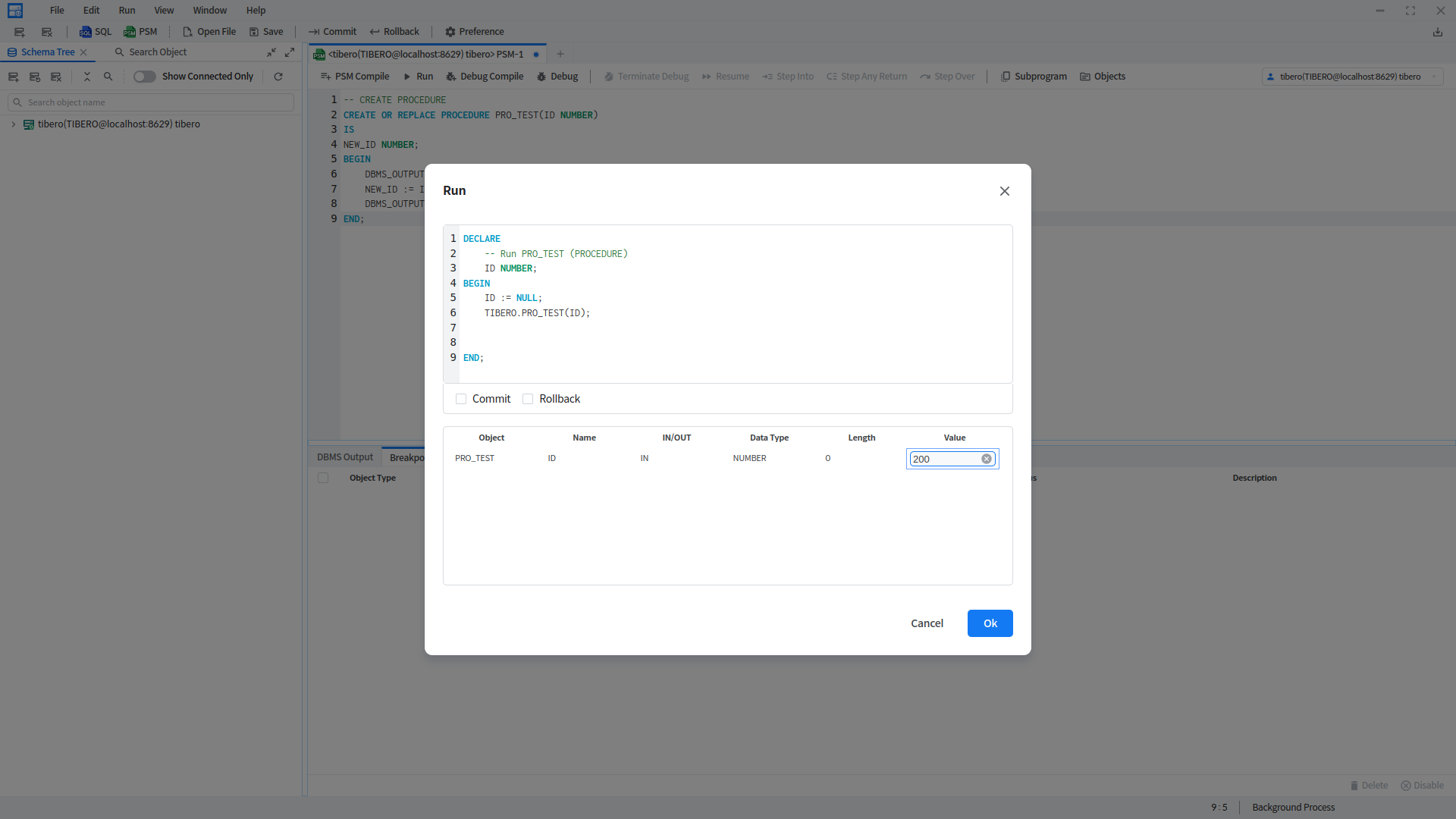
In the Parameter list area at the bottom, the users can see the list of parameters of the program and specify the values to be passed as Arguments. In the bottom table, double-click the Value area to switch to the parameter input mode, enter the value, and press Enter to apply the value.

After checking the PSM statement and entering the value, click the \[OK] button to run the subprogram.

<figure><img src="https://content.gitbook.com/content/nNfkYJbwJttSkGBYdvi9/blobs/iVk7Z5hTEWAcV3EortTv/image.png" alt=""><figcaption><p>Figure 4. PSM Bind Parameter screen</p></figcaption></figure>

<figure><img src="https://content.gitbook.com/content/nNfkYJbwJttSkGBYdvi9/blobs/58Bx7Gcadh0lGcTCjQ40/image%20(1).png" alt=""><figcaption><p>Figure 5. Entering the PSM Bind Parameter screen value </p></figcaption></figure>
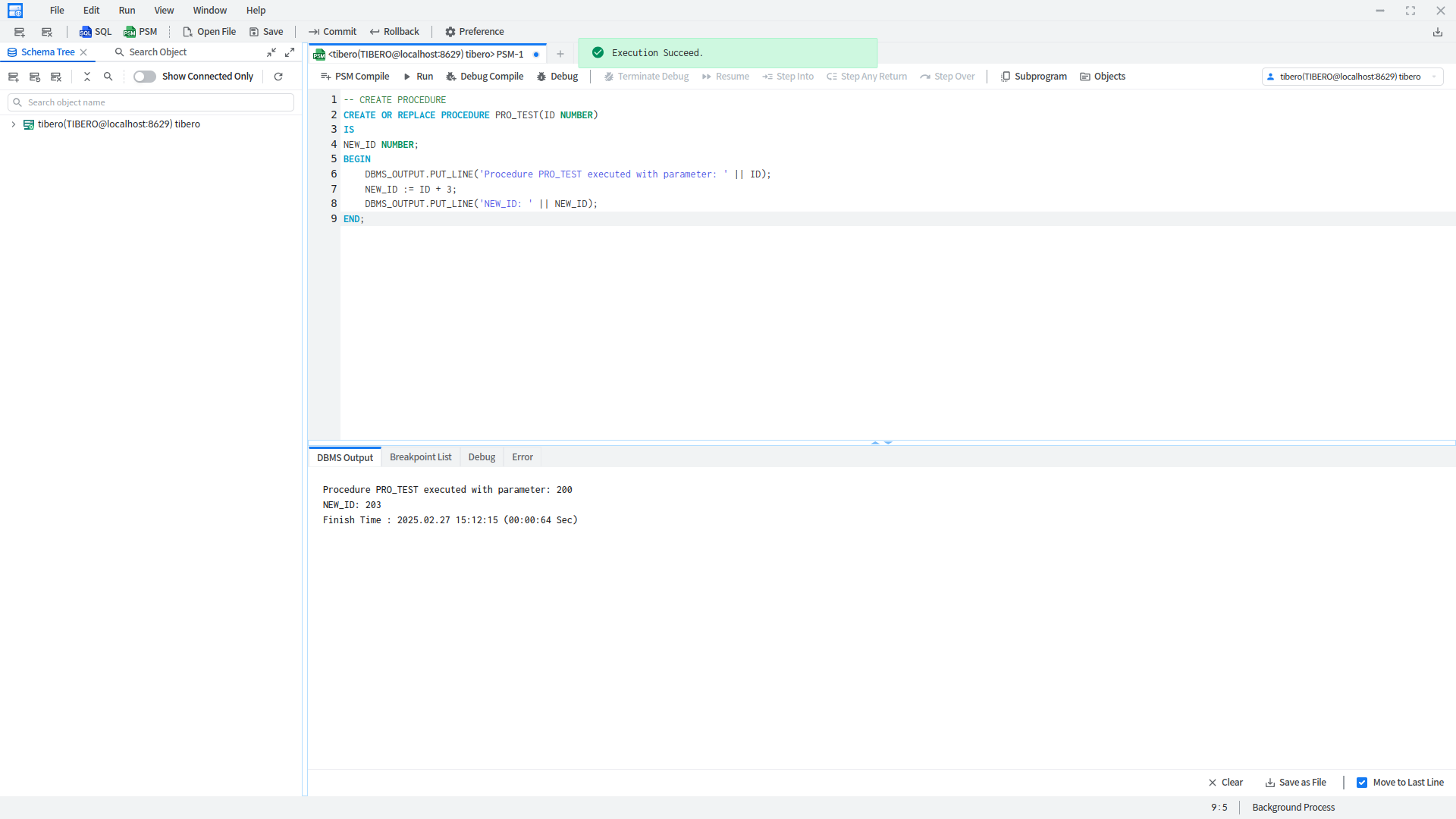
<figure><img src="https://content.gitbook.com/content/nNfkYJbwJttSkGBYdvi9/blobs/QSvKxcSDYWIZnlOOJzS5/image%20(2).png" alt=""><figcaption><p>Figure 6. The result after executing PSM Procedure</p></figcaption></figure>

### Package Body

{% hint style="warning" %}
**Note**

When running the CRAETE (OR REPLACE) PACKAGE BODY syntax, Compile must be preceded for object creation and subprogram tree checking.
{% endhint %}

In the case of Package Body, it is not possible to run the entire package, but it is possible to run each subprogram through the subprogram tree.

Create a Package Body statement and execute Compile. \
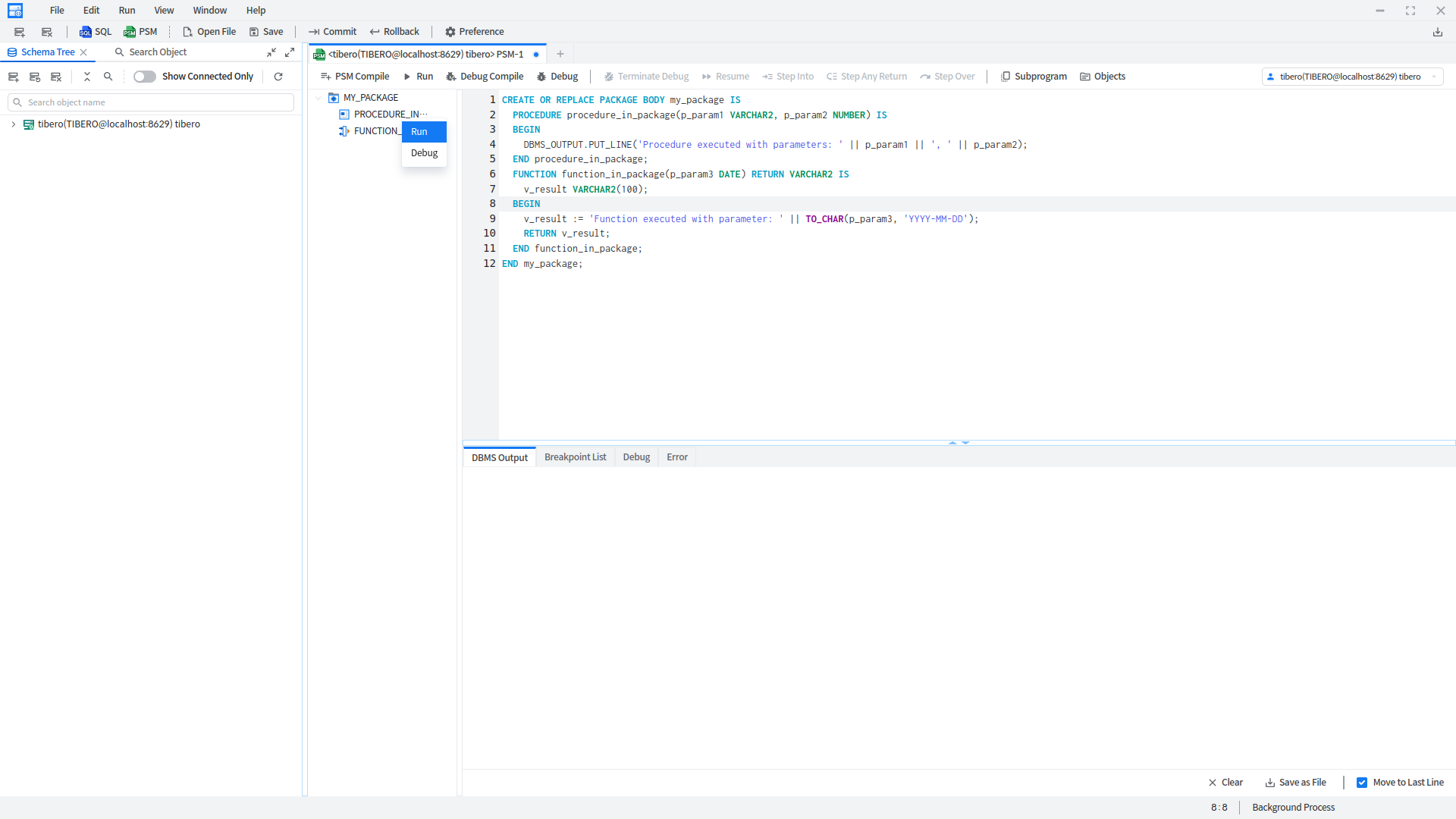
After successful compilation, open the Subprogram tree from the PSM Editor Toolbar > Subprogram menu or the shortcut (Ctrl + G) to see the list of Packages and Subprograms in a tree structure in the Subprogram tree on the left side of the PSM Editor.

The users can run the Package Subprogram by calling the Context Menu by right-clicking on the Subprogram item and then clicking the \[Run] menu. When The users click \[Run], the Parameter input window is displayed just like running Procedure / Function.

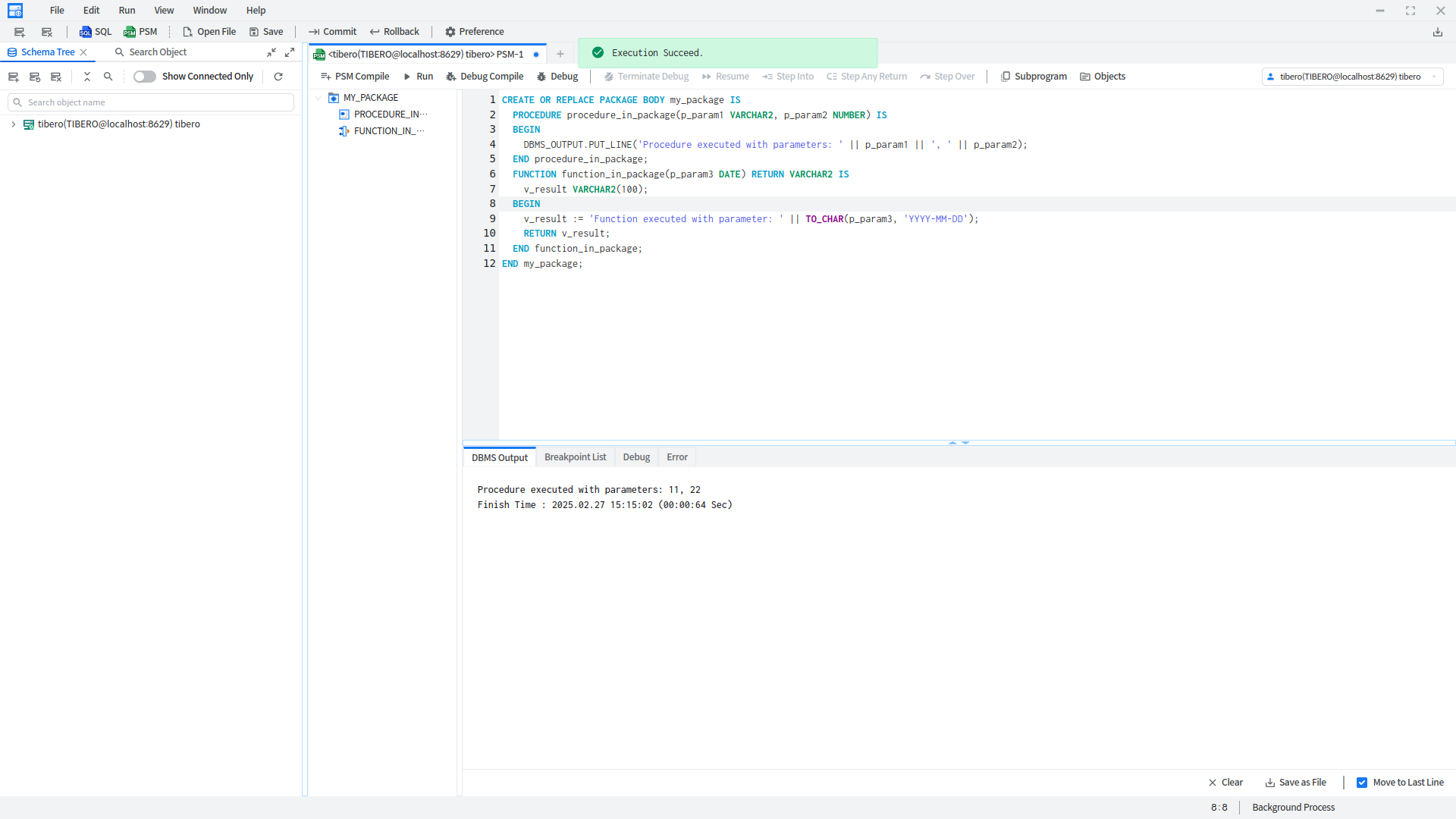
After checking the PSM statement and entering the value, The users can run the subprogram by clicking \[OK] button.

<figure><img src="https://content.gitbook.com/content/nNfkYJbwJttSkGBYdvi9/blobs/QrRege3ReA6ZTE0qoODY/image%20(3).png" alt=""><figcaption><p>Figure 7. Execution of Package Body Subprogram </p></figcaption></figure>

<figure><img src="https://content.gitbook.com/content/nNfkYJbwJttSkGBYdvi9/blobs/zezMMWOtzS4kxVcrtDsO/image.png" alt=""><figcaption><p>Figure 8. Package Subprogram Run Bind Parameter</p></figcaption></figure>

<figure><img src="https://content.gitbook.com/content/nNfkYJbwJttSkGBYdvi9/blobs/0mP7Hh0KpFcJdxbMJDk9/image.png" alt=""><figcaption><p>Figure 9. The result of exectuing Package Subprogram </p></figcaption></figure>

###