> For the complete documentation index, see [llms.txt](https://docs.tibero.com/tiberostudio.en/llms.txt). Markdown versions of documentation pages are available by appending `.md` to page URLs; this page is available as [Markdown](https://docs.tibero.com/tiberostudio.en/about/preference/editor-option.md). Agents can also search and read this documentation through its [MCP server](https://docs.tibero.com/tiberostudio.en/~gitbook/mcp).

# Editor Option

## Common Settings

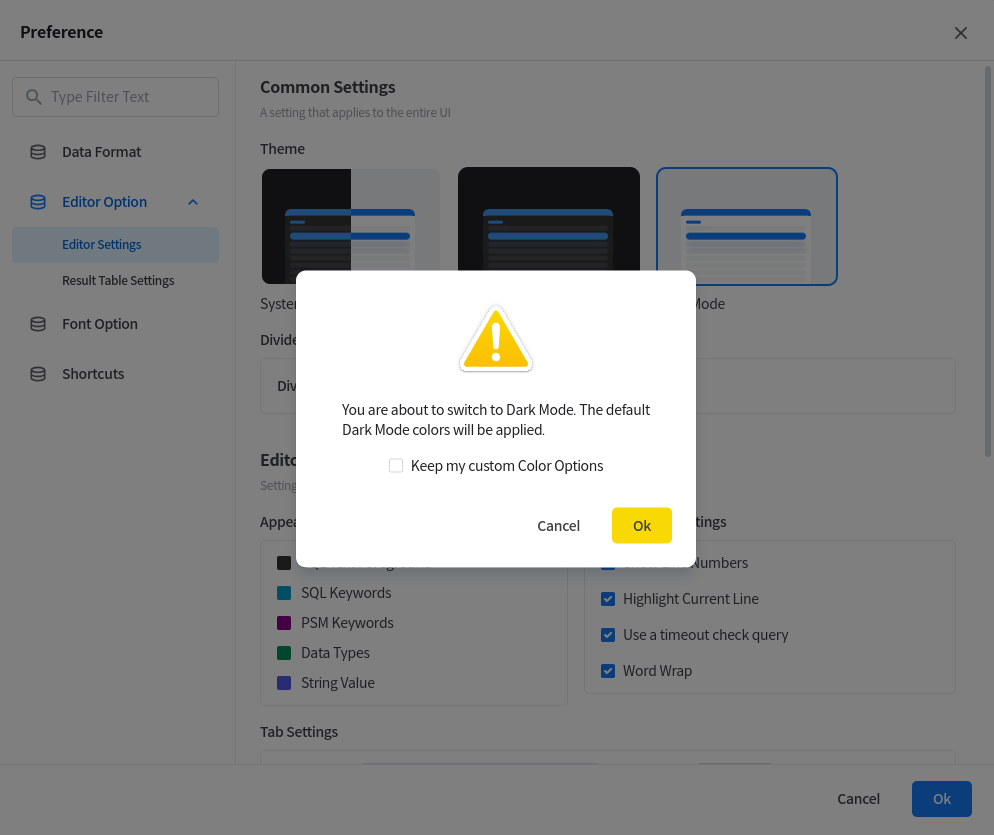
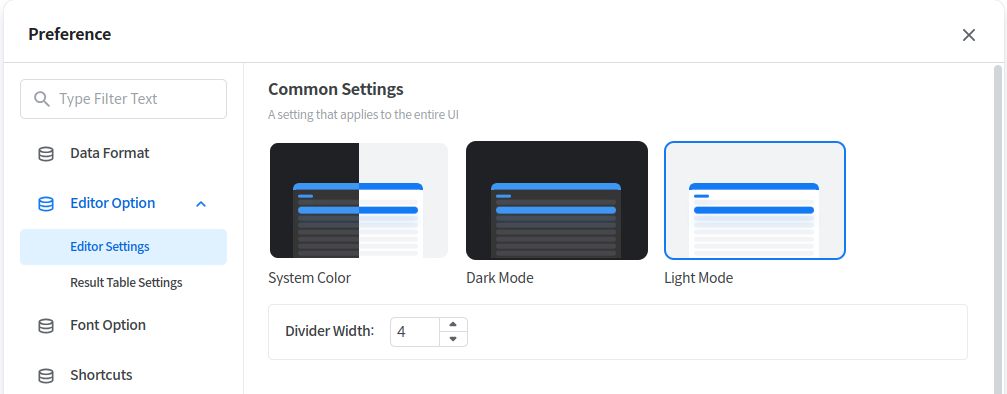
Specifies the theme of the application. Each item is described below.

<figure><img src="https://content.gitbook.com/content/nNfkYJbwJttSkGBYdvi9/blobs/GaVYGUGBgZlKNBWIdhbe/image.png" alt=""><figcaption></figcaption></figure>

<table><thead><tr><th width="172">Item</th><th>Description</th></tr></thead><tbody><tr><td><strong>Theme</strong></td><td><p></p><p>Sets the option related to the theme.</p><p>Whenever the theme is changed, Editor Settings - Appearance Color Options will also be changed to match the theme.</p><p>To change the theme after customizing the colors from the default, a confirmation notification modal will appear. Select the "Keep my custom Color Options" option, and keep the color options and change the theme only.</p><ul><li>System Color: Follow the OS theme setting options.</li><li>Dark Mode: Make the theme darker.</li><li>Light Mode: Make the theme lighter.</li></ul></td></tr><tr><td><strong>Divider WIdth</strong></td><td><p>Specifies the thickness of the panel divider in the application. </p><p>The default value is 4.</p></td></tr></tbody></table>

<figure><img src="https://content.gitbook.com/content/nNfkYJbwJttSkGBYdvi9/blobs/k8biRvphq68rcjjSRafV/image%20(13).png" alt=""><figcaption><p>Window to check the theme changes after customizing colors</p></figcaption></figure>

## Editor Settings

Specify the options related to the editor.

<figure><img src="https://content.gitbook.com/content/nNfkYJbwJttSkGBYdvi9/blobs/NVxcuYZZUOakgQzFzF1f/image%20(14).png" alt=""><figcaption></figcaption></figure>

### Appearance Color Option

Changes the Syntax Highlighting color of the Editor. Each item is described below.

<table><thead><tr><th width="212">Item</th><th>Description</th></tr></thead><tbody><tr><td><strong>SQL Text Foreground</strong></td><td>Sets the default text color in the editor.</td></tr><tr><td><strong>SQL Keywords</strong></td><td>Sets the text color corresponding to SQL Keyword.</td></tr><tr><td><strong>PSM Keywords</strong></td><td>Sets the text color corresponding to PSM Keyword.</td></tr><tr><td><strong>Data Types</strong></td><td>Sets the text color corresponding to Data Type.</td></tr><tr><td><strong>String Value</strong></td><td>Sets the text color corresponding to the string enclosed in quotes.</td></tr></tbody></table>

### Editor Display Setting

Changes the Editor UI and other related settings. Each item is described below.

<table><thead><tr><th width="255">Item</th><th>Description</th></tr></thead><tbody><tr><td><strong>Show Line Numbers</strong></td><td><p>Sets whether to display line numbers.</p><p>The default is True.</p></td></tr><tr><td><strong>Highlight Current Line</strong></td><td>Sets whether to highlight the line where the cursor is currently located.The default is True.</td></tr><tr><td><strong>Use a timeout check query</strong></td><td>Sets whether to run a check query every certain amount of time (120 seconds) to prevent the session from being disconnected.The default is True.</td></tr><tr><td><strong>Word Wrap</strong></td><td>Sets whether to automatically wrap lines to fit the size of the editor window. The default is True.</td></tr></tbody></table>

### Tab Settings

Make settings related to indentation. Each item is described below.

<table><thead><tr><th width="228">Item</th><th>Description</th></tr></thead><tbody><tr><td><strong>Tab Policy</strong></td><td>Sets whether tab characters are represented as tabs or spaces. The default is "Tab Only." </td></tr><tr><td><strong>Highlight Current Line</strong></td><td>Sets the size (spacing) of tab characters. It is activated only when Tab Policy is set to Space Only. The default value is 4.</td></tr></tbody></table>

## Result Table Settings

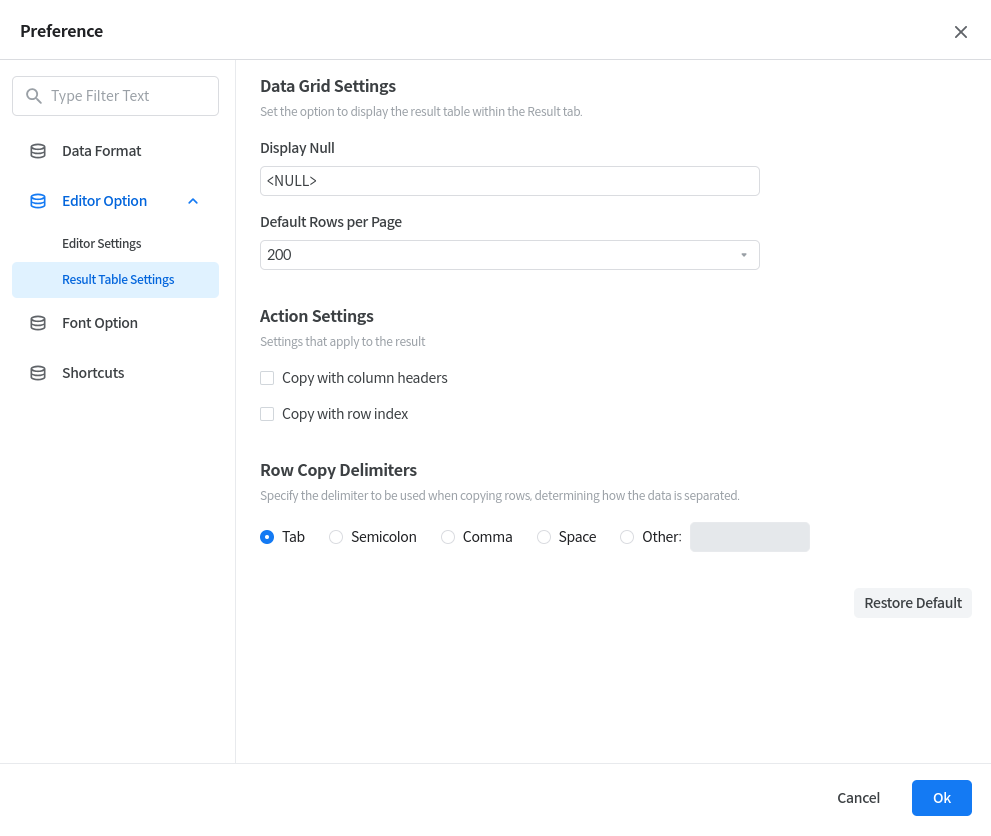
Specifies settings related to the SQL Result tab.

<figure><img src="https://content.gitbook.com/content/nNfkYJbwJttSkGBYdvi9/blobs/MVH2Fe1i3dUeQm8tOleZ/image%20(15).png" alt=""><figcaption></figcaption></figure>

### Data Grid Settings

Makes settings related to the data in the Result Table. Each item is described below.

<table><thead><tr><th width="212">Item</th><th>Description</th></tr></thead><tbody><tr><td><strong>Display Null</strong></td><td>Sets the character to display null values in the Result Table. The default value is '&#x3C;Null>'.</td></tr><tr><td><strong>Row Fetch Count</strong></td><td><p>Sets the number of rows to fetch at a time. </p><p>The user can choose from [200, 500, 1000]. It becomes the default value of Rows per Page in the Result Table. </p><p>The default value is 200.</p></td></tr></tbody></table>

### Action Setting

Makes settings related to copying the Result Table. Each item is described below.

<table><thead><tr><th width="212">Item</th><th>Description</th></tr></thead><tbody><tr><td><strong>Copy with column headers</strong></td><td>Sets whether to copy the column names when copying the result data. The default value is False. </td></tr><tr><td><strong>Row Fetch Count</strong></td><td>Sets whether to copy the row numbers when copying the result data. The default value is False.</td></tr></tbody></table>

### Row Copy Delimiters

Sets the column delimiters when copying Result data. Each field is described below. The default is Tab.

<table><thead><tr><th width="212">Item</th><th>Description</th></tr></thead><tbody><tr><td><strong>Tab</strong></td><td><code>\t</code></td></tr><tr><td><strong>Semicolon</strong></td><td><code>;</code></td></tr><tr><td><strong>Comma</strong></td><td><code>,</code></td></tr><tr><td><strong>Space</strong></td><td>  (space)</td></tr><tr><td><strong>Other</strong></td><td>Sets it in the input field to set own delimiter in addition to the above items.</td></tr></tbody></table>

###