> For the complete documentation index, see [llms.txt](https://docs.tibero.com/sysmasterdb/llms.txt). Markdown versions of documentation pages are available by appending `.md` to page URLs; this page is available as [Markdown](https://docs.tibero.com/sysmasterdb/8.4_manual/analysis/performance-analysis/heatmap-trend/daily-hourly-chart.md).

# Daily Hourly Chart

선택한 기간 하루 동안의 시간 단위 차트를 제공한다. 이때 Heatmap Trend 화면 상단의 **OS, Stat, Wait (Time), Wait (Count), Session** 버튼을 사용해서 각 지표의 사용량에 대한 Overview를 확인할 수 있다. 차트 오른쪽 위의 Interval은 hour로 고정되어 있으며, Aggregation은 AVG / MAX / MIN 중 선택할 수 있다. (기본값 AVG)

### **OS**&#x20;

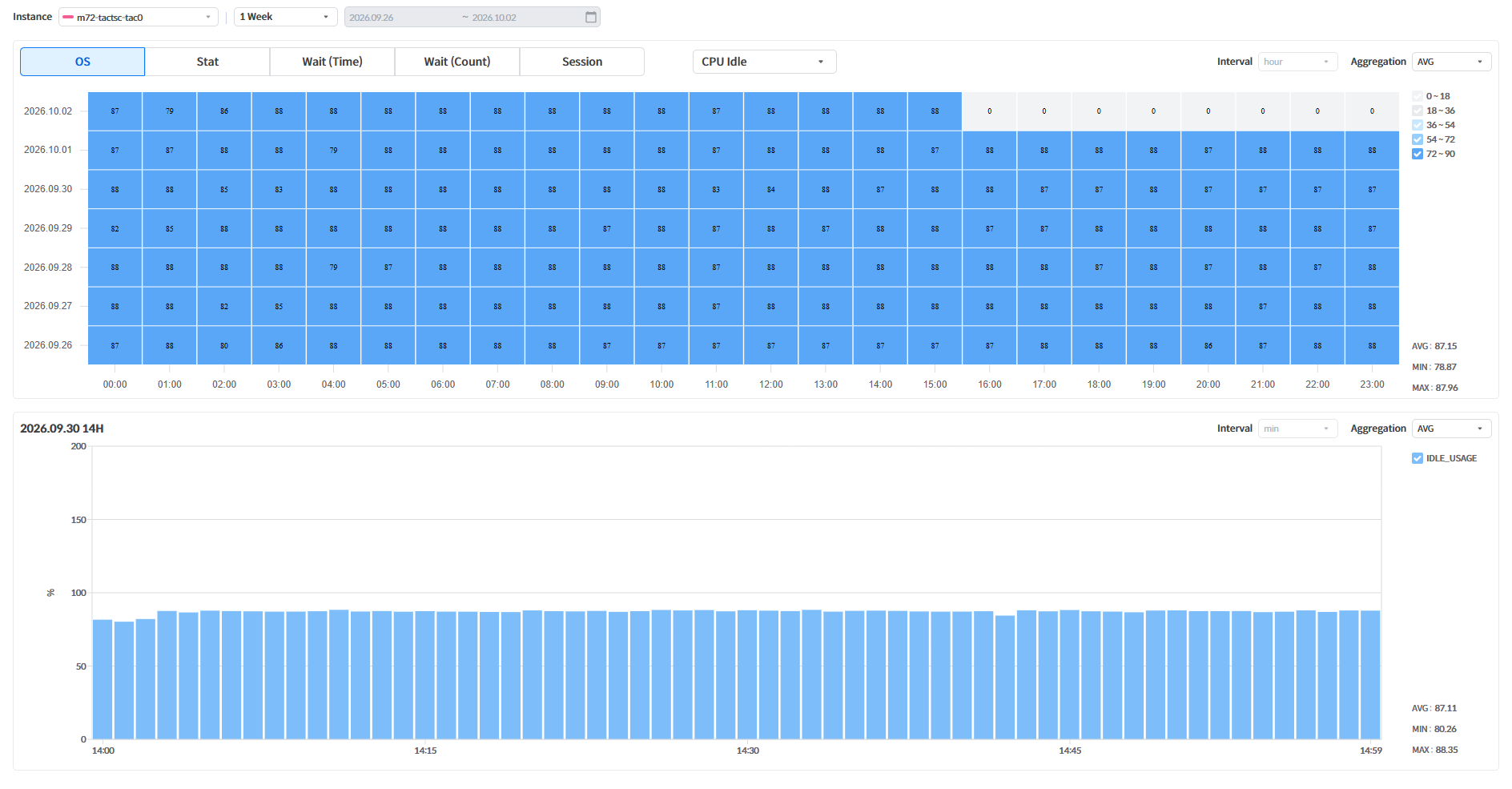
OS 관련 항목('CPU Idle', 'CPU Sys', 'Memory Usage' 등)의 사용량에 대한 시간 단위 차트를 조회한다.&#x20;

<figure><img src="https://264733866-files.gitbook.io/~/files/v0/b/gitbook-x-prod.appspot.com/o/spaces%2Fgw24XwSa6QXLFywb7Txd%2Fuploads%2FHfVWOVlCbw2RKCkli6LS%2F178_heatmap-os.png?alt=media" alt=""><figcaption><p><strong>Daily Hourly Chart - OS</strong></p></figcaption></figure>

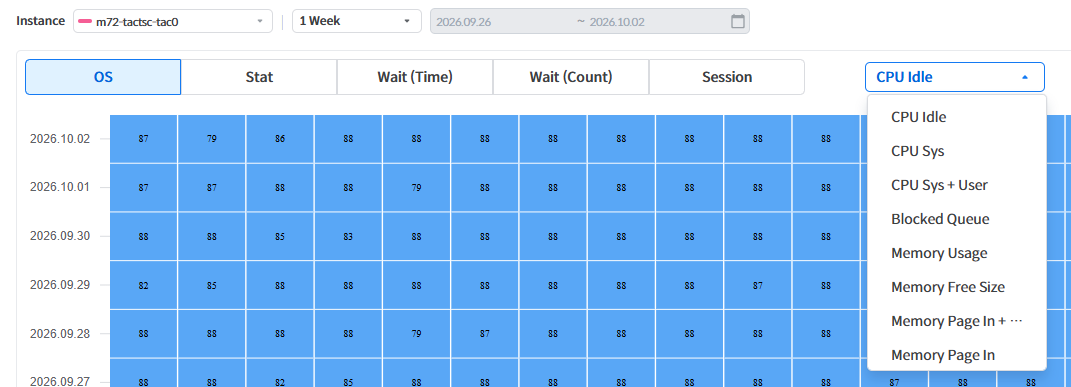
이때 지표 선택 버튼 영역 오른쪽의 콤보박스를 사용하여 조회할 리소스를 변경할 수 있다.

<figure><img src="https://264733866-files.gitbook.io/~/files/v0/b/gitbook-x-prod.appspot.com/o/spaces%2Fgw24XwSa6QXLFywb7Txd%2Fuploads%2FePemOwdMw2pTry67snin%2F179_os-items.png?alt=media" alt=""><figcaption><p><strong>Daily Hourly Chart - OS - 리소스 선택</strong></p></figcaption></figure>

### Stat

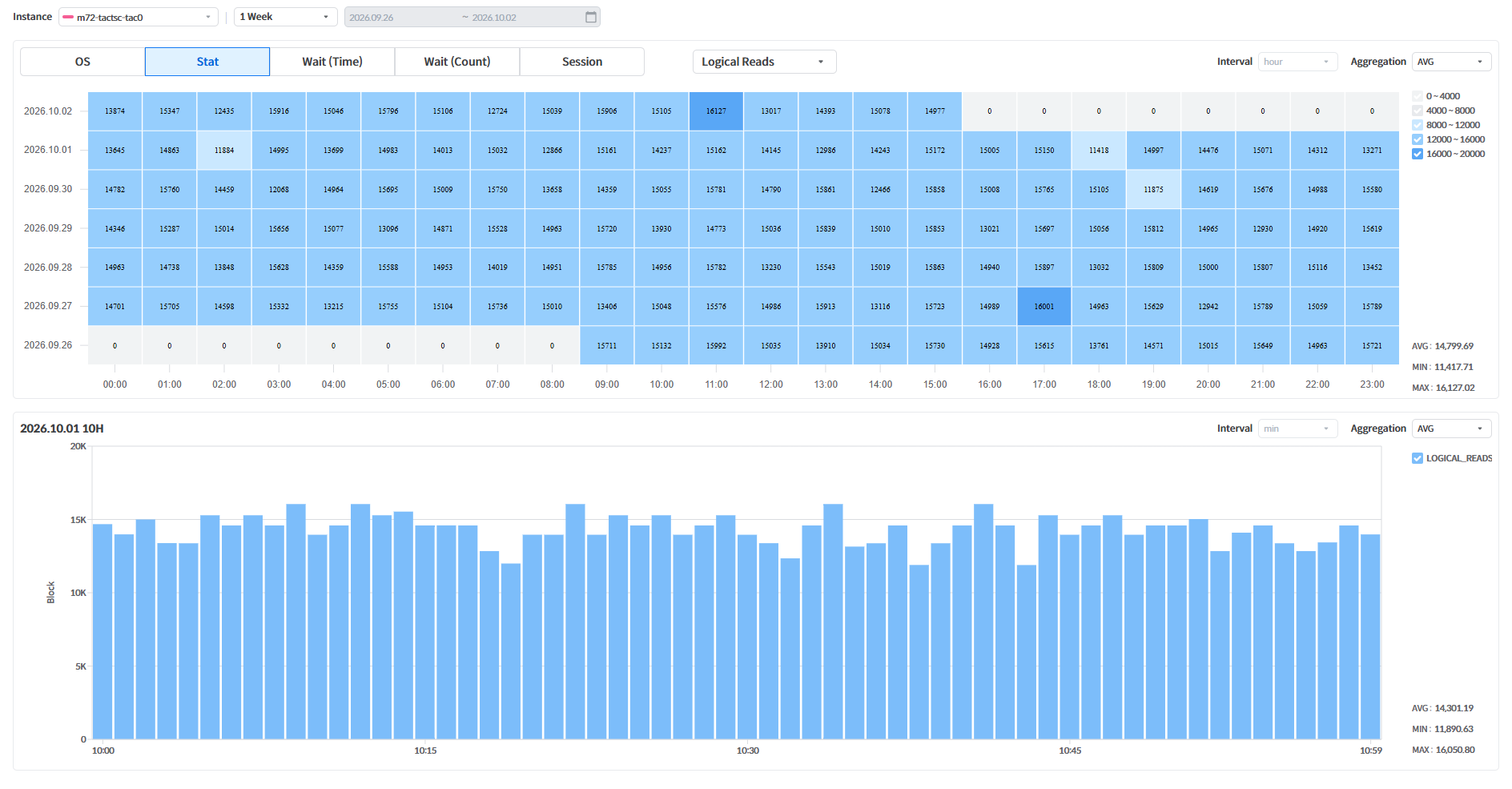
Stat 관련 항목('Logical Reads', 'Physical Reads', 'Execute Count' 등)의 사용량에 대한 시간 단위 차트를 조회한다.

<figure><img src="https://264733866-files.gitbook.io/~/files/v0/b/gitbook-x-prod.appspot.com/o/spaces%2Fgw24XwSa6QXLFywb7Txd%2Fuploads%2F5aXqND8Z49tx4eZ41Pvh%2F180_heatmap-stat.png?alt=media" alt=""><figcaption><p><strong>Daily Hourly Chart - Stat</strong></p></figcaption></figure>

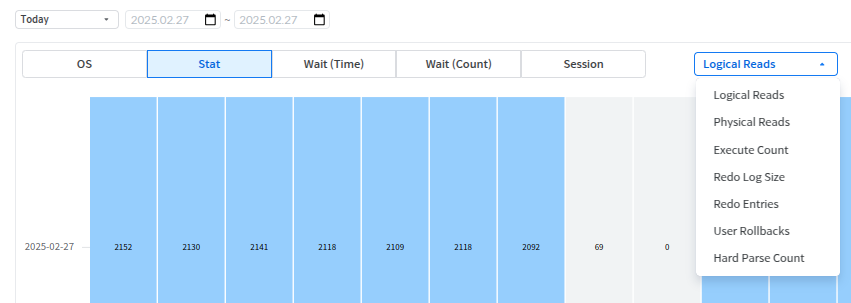
이때 지표 선택 버튼 영역 오른쪽의 콤보박스를 사용하여 조회할 리소스를 변경할 수 있다.

<figure><img src="https://content.gitbook.com/content/gw24XwSa6QXLFywb7Txd/blobs/c73sUeFfbzdkSLJxHClc/image.png" alt=""><figcaption><p><strong>Daily Hourly Chart - Stat - 리소스 선택</strong></p></figcaption></figure>

### Wait (Time)

&#x20;Wait Time 관련 항목('WE\_JC\_BUF\_DISK\_READ\_TIME', 'WE\_BUF\_FREE\_TIME' 등)의 사용량에 대 한 시간 단위 차트를 조회한다.

<figure><img src="https://264733866-files.gitbook.io/~/files/v0/b/gitbook-x-prod.appspot.com/o/spaces%2Fgw24XwSa6QXLFywb7Txd%2Fuploads%2FGaDP76C8uG7TbN6DTrvF%2F182_heatmap-wait-time.png?alt=media" alt=""><figcaption><p><strong>Daily Hourly Chart - Wait (Time)</strong></p></figcaption></figure>

이때 지표 선택 버튼 영역 오른쪽의 콤보박스를 사용하여 조회할 리소스를 변경할 수 있다.

<figure><img src="https://264733866-files.gitbook.io/~/files/v0/b/gitbook-x-prod.appspot.com/o/spaces%2Fgw24XwSa6QXLFywb7Txd%2Fuploads%2FxkUglcDZ0ceCSmKOeIy3%2F183_wait-time-items.png?alt=media" alt=""><figcaption><p><strong>Daily Hourly Chart - Wait (Time) - 리소스 선택</strong></p></figcaption></figure>

### Wait (Count)

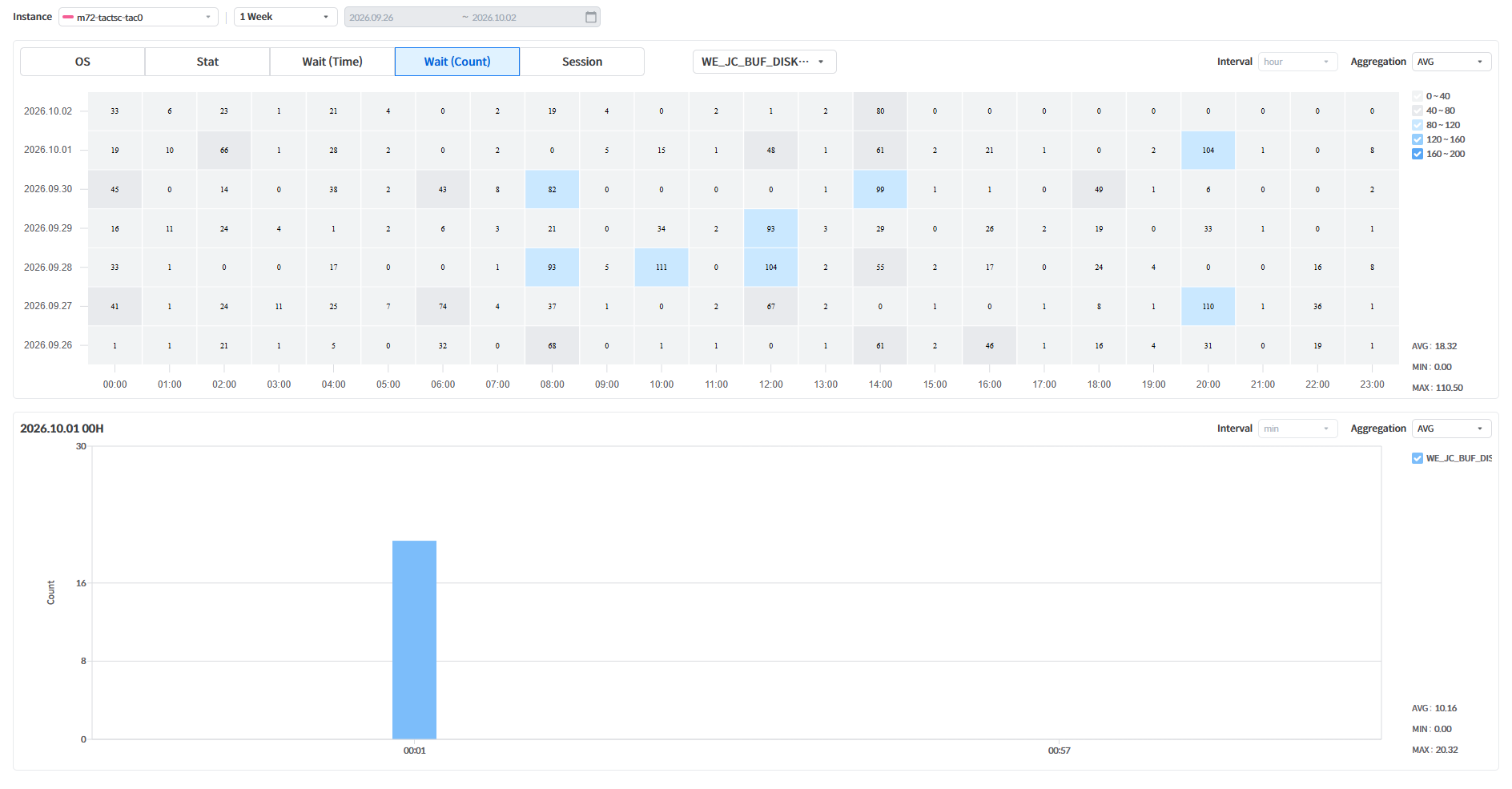
Wait Count 관련 항목('WE\_JC\_BUF\_DISK\_READ\_COUNT', 'WE\_BUF\_FREE\_COUNT' 등)의 사용량 에 대한 시간 단위 차트를 조회한다.

<figure><img src="https://264733866-files.gitbook.io/~/files/v0/b/gitbook-x-prod.appspot.com/o/spaces%2Fgw24XwSa6QXLFywb7Txd%2Fuploads%2FJ6nKrk75C2qgi55M0l8x%2F184_heatmap-wait-count.png?alt=media" alt=""><figcaption><p><strong>Daily Hourly Chart - Wait (Count)</strong></p></figcaption></figure>

이때 지표 선택 버튼 영역 오른쪽의 콤보박스를 사용하여 조회할 리소스를 변경할 수 있다.

<figure><img src="https://264733866-files.gitbook.io/~/files/v0/b/gitbook-x-prod.appspot.com/o/spaces%2Fgw24XwSa6QXLFywb7Txd%2Fuploads%2FCYpksGEsyYRgpFwygVRy%2F185_wait-count-items.png?alt=media" alt=""><figcaption><p><strong>Daily Hourly Chart - Wait (Count) - 리소스 선택</strong></p></figcaption></figure>

### Session

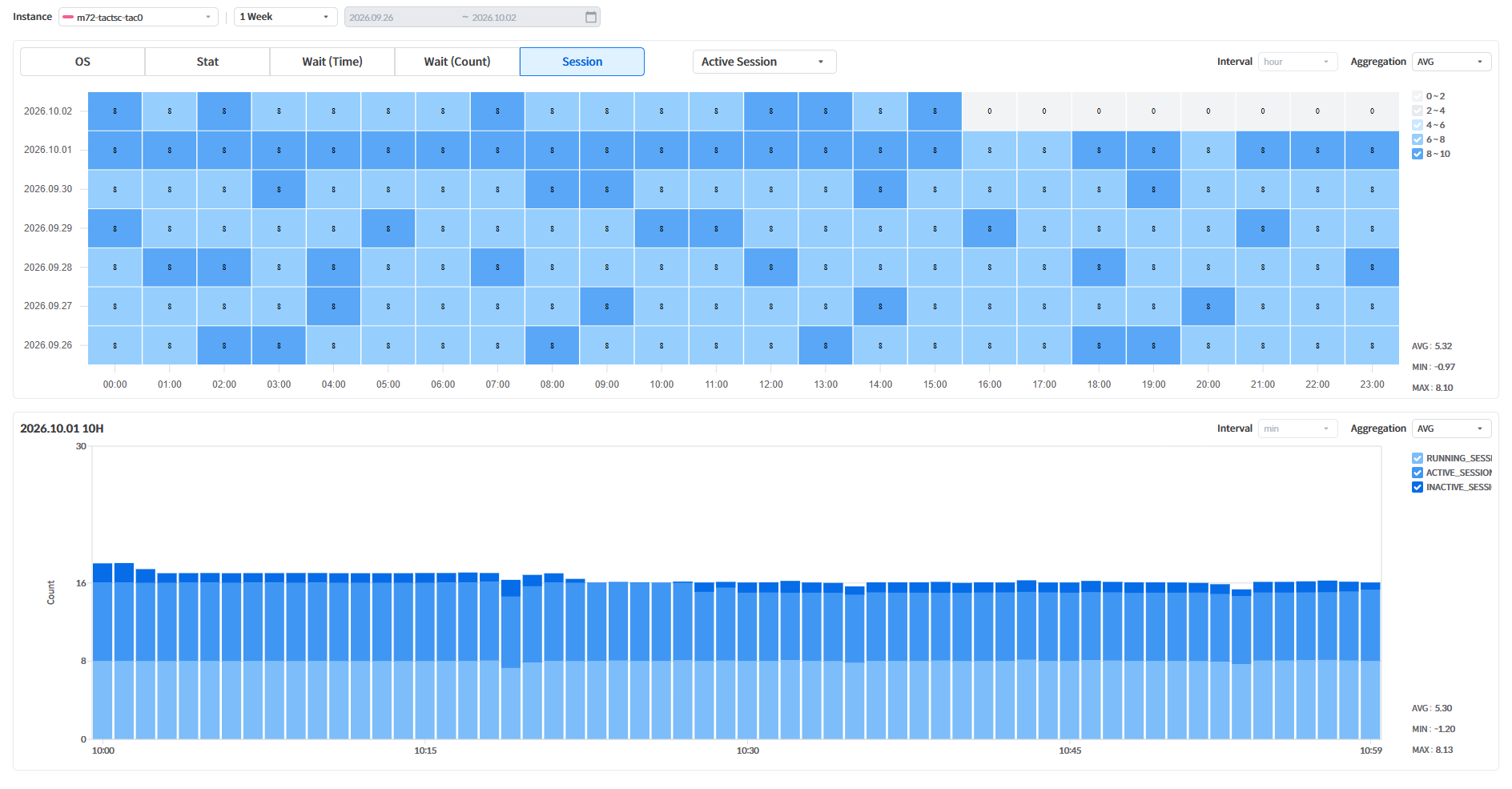
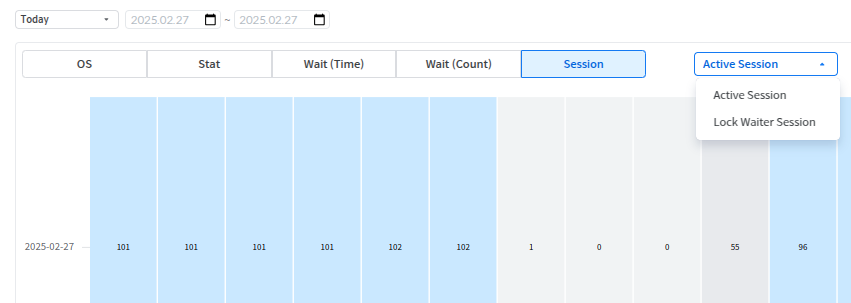
Session 관련 항목('Active Session', 'Lock Waiter Session')의 사용량에 대한 시간 단위 차트를 조회한다.

<figure><img src="https://264733866-files.gitbook.io/~/files/v0/b/gitbook-x-prod.appspot.com/o/spaces%2Fgw24XwSa6QXLFywb7Txd%2Fuploads%2FB3DnUhlk163wCQFGHu22%2F186_heatmap-session.png?alt=media" alt=""><figcaption><p><strong>Daily Hourly Chart - Session</strong></p></figcaption></figure>

이때 지표 선택 버튼 영역 오른쪽의 콤보박스를 사용하여 조회할 리소스를 변경할 수 있다.

<figure><img src="https://content.gitbook.com/content/gw24XwSa6QXLFywb7Txd/blobs/r86itwGOlflXDiNQ8rDA/image.png" alt=""><figcaption><p><strong>Daily Hourly Chart - Session - 리소스 선택</strong></p></figcaption></figure>