# 로그인
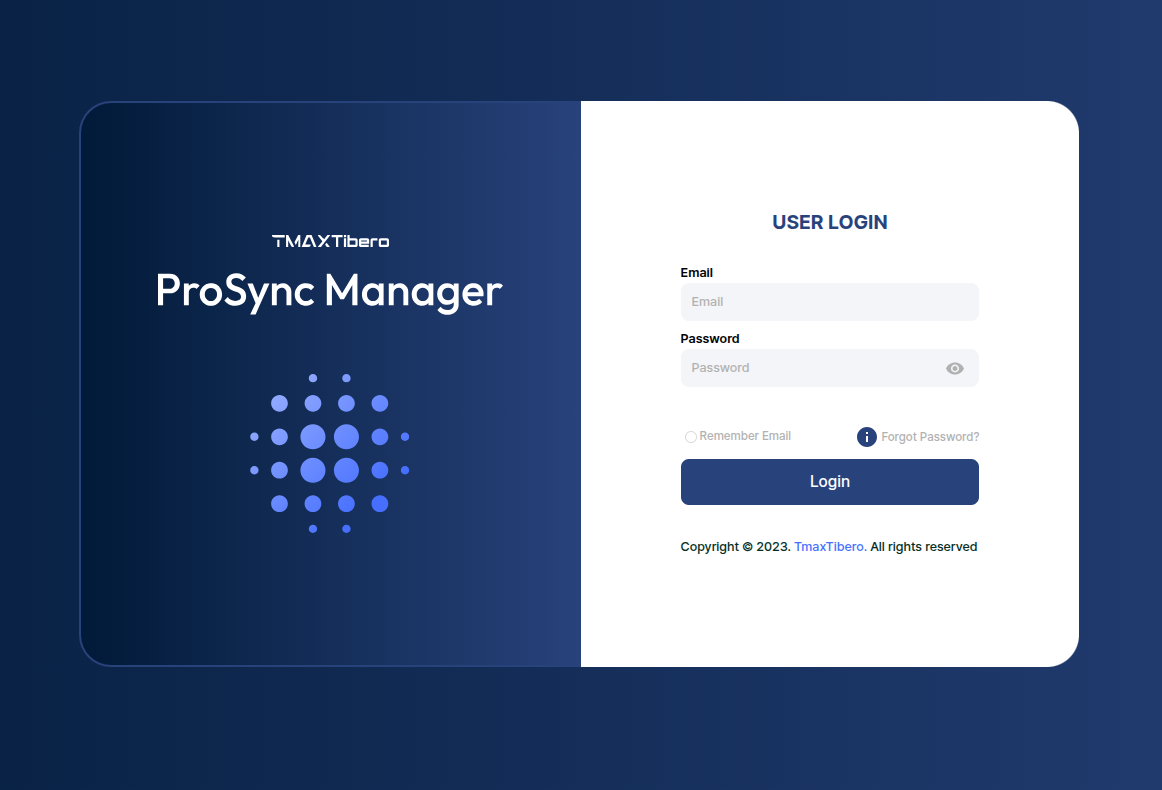
ProSync Manager 를 사용하기 위해서는 웹 브라우저에 접속한 후 로그인 한다.
그림 1. Prosync Manager 로그인 화면
로그인 화면에서 사용자 ID와 패스워드를 입력한 후 Login 버튼을 클릭한다. \
로그인 성공 시 [Replication Diagram](https://docs.tibero.com/prosyncmanager/4.5_manual/replication-diagram) 페이지로 이동한다.
ProSync Manager 설치 시 기본적으로 관리자 권한을 가지는 계정을 생성하는데, 이 때 기본적으로 제공되는 관리자 계정의 아이디 및 패스워드는 admin/admin 이며, 설치 과정 중 [install.cfg](https://docs.tibero.com/prosyncmanager/4.5_manual/installation-guide/installation/installation-parametersettings#id-1)에서 변경 가능하다.
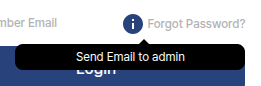
그림 2. 비밀번호 찾기 화면
만약 User 가 비밀번호를 잊어버렸을 경우, Forgot Password 의 Info 아이콘에 마우스를 갖다대면 관리자 계정의 아이디를 확인 할 수 있다.
해당 계정은 다른 User 의 비밀번호를 변경할 수 있는 자격이 있으므로 해당 계정의 소유주에게 문의하여 비밀번호를 변경한다.
###
---
# Agent Instructions: Querying This Documentation
If you need additional information that is not directly available in this page, you can query the documentation dynamically by asking a question.
Perform an HTTP GET request on the current page URL with the `ask` query parameter:
```
GET https://docs.tibero.com/prosyncmanager/4.5_manual/execution/login.md?ask=
```
The question should be specific, self-contained, and written in natural language.
The response will contain a direct answer to the question and relevant excerpts and sources from the documentation.
Use this mechanism when the answer is not explicitly present in the current page, you need clarification or additional context, or you want to retrieve related documentation sections.